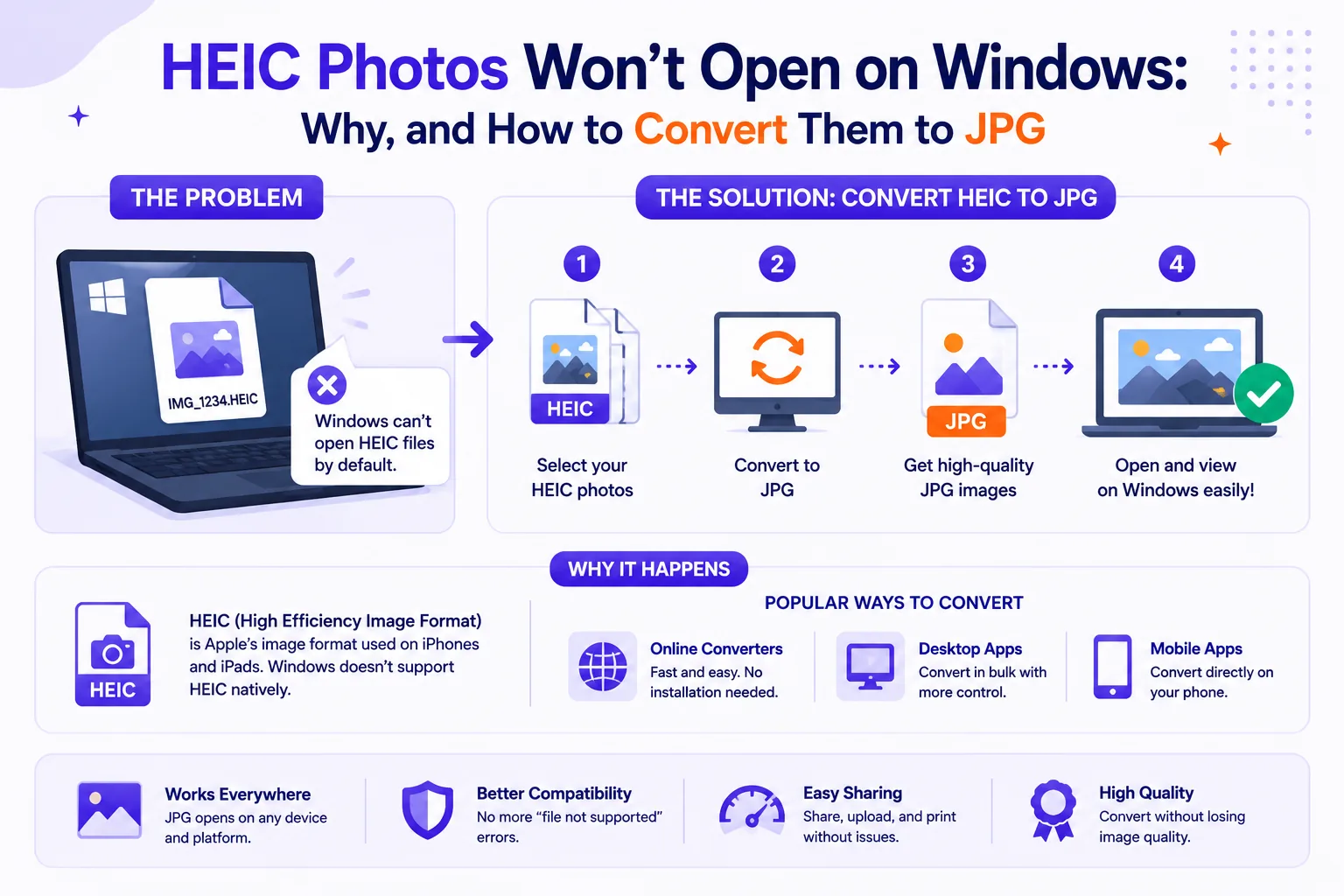
You plugged the iPhone into your Windows PC, copied 400 photos into a folder, and File Explorer is showing you 400 blank white rectangles. Double-click one and the Photos app tells you the HEVC Video Extension is required to display this file, with a helpful link to the Microsoft Store, where it is not free.
There are three separate fixes, and which one you want depends on whether you are rescuing photos you already have or preventing the next batch.
What a .heic file actually is
HEIC is not really an image format. It is a container, HEIF, standardised as ISO/IEC 23008-12:2017, holding a still frame compressed with HEVC, the video codec better known as H.265, and registered under the MIME type image/heic (Library of Congress format description). Your phone is saving a one-frame video and calling it a photo.
That is also why it is good. HEVC's intra-frame prediction is far more capable than JPEG's 8×8 DCT blocks, which is how Apple can say HEIF and HEVC "use less storage space on your devices and iCloud Photos, while preserving the same visual quality" (Apple). Every iPhone from the iPhone 7 onward, on iOS 11 or later, captures this way unless told otherwise.
The container carries things JPEG cannot: depth maps for Portrait mode, multiple frames for bursts and Live Photos, and wide-gamut colour. The specific HEIC variant Apple writes is 8 bits per channel with 4:2:0 chroma subsampling.
The catch is that almost nothing outside Apple's world reads it. Browser support is Safari 17 and up and nothing else, not Chrome, not Firefox, not Edge (caniuse).
Why Windows charges you for it
Windows can handle the HEIF container for free. It cannot decode HEVC for free, because H.265 is covered by patent pools that charge royalties. Microsoft split the job into two Store packages, and only one of them costs nothing.
| Microsoft Store package | US list price | What it provides |
|---|---|---|
| HEIF Image Extension | $0.00 | Reads and writes the HEIF container |
| HEVC Video Extensions | $0.99 | The actual H.265 decoder |
| HEVC Video Extensions from Device Manufacturer | $0.00 | Same decoder, OEM-only listing |
Those are the list prices Microsoft's own product catalogue returns for the US market for HEIF Image Extension and HEVC Video Extensions. Installing only the free one does not work, and Microsoft says so on the listing itself: "The HEVC Video Extensions package must be installed in order to view images stored in HEIF files that use the .heic, .hif or .heif file extensions."
The third row is the one people go hunting for. It is the identical decoder at no charge, published for PC manufacturers who have already paid the royalty on your hardware, so it does not appear in normal Store search. Windows Latest tested the sideload route in 2025 and found it "does work on some of our devices, but not all the time." Treat it as a coin flip rather than a solution.
If you buy the $0.99 extension, it is a one-time purchase tied to your Microsoft account, and it fixes File Explorer thumbnails and the Photos app in one go. For a lot of people that is the cheapest hour they will ever save. Microsoft's own support answer for iPhone imports points at the same two extensions (Microsoft Q&A).
The free routes
Convert in the browser. Drag the HEIC files onto the Qikks HEIC to JPG converter and you get JPGs back without installing anything or buying a codec. The decoder runs in the page, so the photos never leave your machine, which matters if the folder happens to contain passport scans, medical paperwork or a client's product shoot rather than holiday snaps. It takes up to 30 files per batch and returns them as a ZIP.
Install a free desktop codec. CopyTrans HEIC supports Windows 7 through 11, adds HEIC thumbnails to File Explorer and a right-click "Convert to JPEG" item, and lets Microsoft Office insert HEIC files. The free version converts up to 100 images in one go.
Fix it at the source. This is the one worth doing, because it stops the problem recurring every time you plug the phone in.
Stop the iPhone producing HEIC
There are two settings and they do different jobs. Changing one does not change the other, which is why "I already set it to Most Compatible" and "I still get HEIC files" are both true for a lot of people.
1. Change what the camera captures
- Open Settings, tap Camera.
- Tap Formats.
- Tap Most Compatible.
New photos are saved as JPEG and new video as H.264. Tapping High Efficiency puts it back (Apple). This applies only to photos taken from now on, everything already in your library stays HEIC, and your camera roll will start eating noticeably more storage.
2. Change what happens on transfer
- Open Settings, tap Apps, tap Photos.
- Scroll down to Transfer to Mac or PC.
- Choose Automatic if you want JPEGs on the PC. Choose Keep Originals if you want the untouched HEIC files.
Apple documents this from the opposite direction: "If you don't want it to be converted, open Settings, tap Apps, tap Photos, then scroll down and tap Keep Originals." Windows users almost always want the other one. On older iOS releases the same setting lives at Settings > Photos, without the Apps layer.
One caveat: the conversion is performed by iOS during the USB handshake, not by Windows, so if the phone decides the PC already understands HEVC, or the handshake resets mid-copy, you can still end up with raw HEIC files on an Automatic setting (Microsoft Q&A).
3. Download from iCloud.com instead of the cable
If the photos are already in iCloud Photos, the web download dialog offers Unmodified Originals (as captured), Highest Resolution (typically HEIC or H.265) and Most Compatible (JPEG or MP4/H.264) (Apple). Picking Most Compatible converts on Apple's servers and hands you JPEGs, no codec required.
Apple's own transfer guidance for PCs is the same: install the Apple Devices app from the Microsoft Store, then set Settings > Camera > Formats to Most Compatible (Apple).
What converting to JPG actually costs
You are decoding a modern codec and re-encoding with a 1992 one, so expect the files to get bigger. How much bigger depends entirely on how hard the HEIC was compressed in the first place.
We measured this in a sandbox using Nokia's published HEIF sample images, decoding each one and re-encoding it as JPEG with libjpeg-turbo at several quality settings. PSNR is measured against the decoded HEIC, so it shows how much the JPEG step degrades what was already in the file.
| 1440×960 sample | HEIC | JPEG q90 | JPEG q85 | JPEG q80 |
|---|---|---|---|---|
| Crowd scene | 127 KB | 410 KB (3.2×) | 294 KB (2.3×) | 254 KB (2.0×) |
| Ski jump | 115 KB | 231 KB (2.0×) | 165 KB (1.4×) | 136 KB (1.2×) |
At quality 85 the JPEGs scored 37.5 dB and 39.6 dB PSNR respectively, well above the roughly 35 dB threshold where compression artefacts stop being visible at normal viewing distance. Quality 90 buys you about 3 dB more for roughly 40% more bytes.
The rule is not universal. A third sample, a 1280×854 image encoded at a much higher HEIC bitrate (701 KB), produced a smaller 663 KB file at JPEG quality 95. If a HEIC file is already large, converting it will not necessarily cost you anything.
Practical settings: quality 85 for anything going on the web or into a document, quality 90-95 for photos you may edit or print again. Below 80 you start seeing blocking in skies and skin tones.
Batch converting a folder
For a one-off import, drag the whole selection into a browser converter and take the ZIP. For a recurring job on Windows, ImageMagick with a HEIF-enabled build handles it from the command line:
magick mogrify -format jpg -quality 85 -auto-orient *.heic
The -auto-orient flag matters. HEIC files from an iPhone carry rotation in metadata, and converters that ignore it hand you sideways photos, one of the most common complaints about bulk HEIC conversion.
Whatever tool you use, check that it handles Live Photos sensibly. A Live Photo's HEIC holds the still frame, with the motion stored in a separate .mov, so a converter should give you the primary image rather than silently picking a random frame.
The five-minute checklist
- Photos already on the PC and you want them readable everywhere: convert to JPG at quality 85.
- Photos already on the PC and you want to keep them as HEIC: buy HEVC Video Extensions ($0.99) plus the free HEIF Image Extension.
- Want thumbnails in File Explorer without paying: install CopyTrans HEIC.
- Stop new photos being HEIC: Settings > Camera > Formats > Most Compatible.
- Stop transfers arriving as HEIC: Settings > Apps > Photos > Transfer to Mac or PC > Automatic.