A contract goes out for comment and comes back signed, except it is version 3, not version 5, and nothing on the page said so. Or a design proof reaches a client who forwards it to their printer before the invoice is paid. Both have the same cheap fix, easily done badly: a watermark too faint to notice, too dark to read through, or on the wrong pages. The right settings depend on the job.
Four jobs, four different watermarks
| Job | Text | Opacity | Layer |
|---|---|---|---|
| Version control | DRAFT v5, 2026-08-23 | 10-15% | Behind |
| Confidentiality | CONFIDENTIAL, INTERNAL ONLY | 12-20% | Behind |
| Licensing / proofing | SAMPLE, PREVIEW, UNLICENSED | 25-40% | In front |
| Per-recipient tracing | Recipient name or order number | 8-12% | Behind, small |
All four go on every page unless noted. Version control stops a signature landing on the wrong copy, so the mark needs a version identifier, "DRAFT" alone does not separate draft 4 from draft 6. Put the version and date in it.
Confidentiality marking is labelling, not a security control. It tells a legitimate recipient how to treat the file and makes a screenshot self-incriminating. It stops nothing.
Licensing and proofing is the one case where the mark should make the document less usable, a stock photo proof, an unpaid design comp, a paywalled preview. Obstructive, on top of the content, tedious to paint out.
Per-recipient tracing works the other way: the mark should be almost invisible, because its job is to survive being ignored. Each recipient gets a copy carrying their own name or ID, you record who got which, and a leaked copy identifies itself. The cost is one file per recipient, not one file total.
Text or image
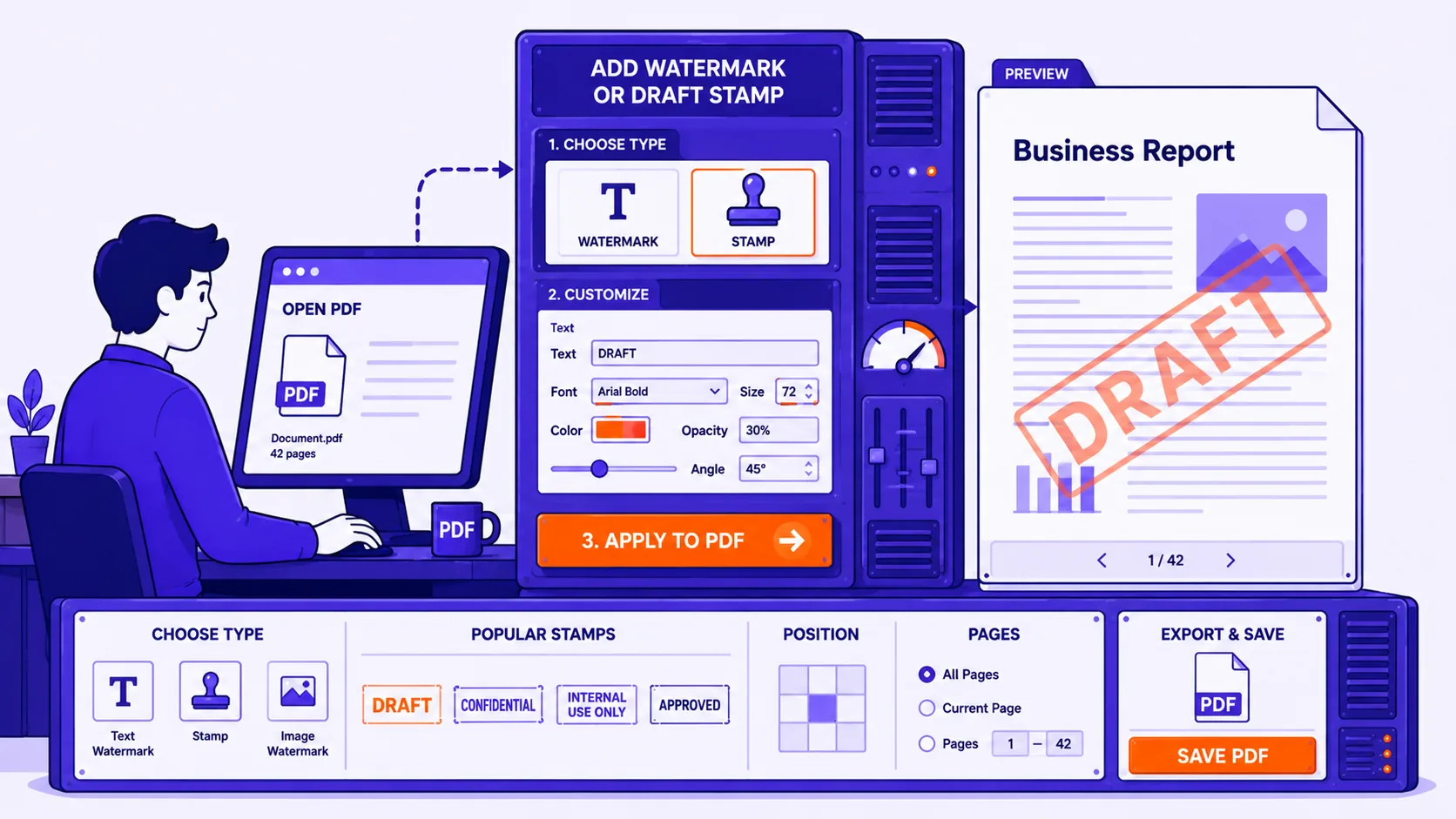
Use text unless you have a reason not to: text marks are a few hundred bytes, scale to any page size and stay crisp at any zoom. An image watermark, a logo, a signature, a company stamp, is right when the mark must be recognisable branding rather than a word. Supply it as a PNG with transparency at roughly twice its printed size: a 200 pt-wide logo wants a source around 550 px. Do not fake the transparency by making the artwork grey; set opacity at watermark time so you can change it without re-exporting.
Opacity, angle, size and position
Opacity is the setting people get wrong. In PDF terms it is the graphics-state alpha constant, between 0 and 1, composited against whatever is underneath. Black at 0.12 alpha over a white page renders at 255 × (1 − 0.12) ≈ 224, about a 12% grey: clearly visible as a shape, with body text still fully legible. I checked that against a render, the same mark over a grey scan of value 238 predicts 238 × 0.88 ≈ 209, and the rendered page differed from the unwatermarked one by at most 30 per pixel against a predicted 29.
Diagonal at 45° is the default because it crosses the most text, is obviously not part of the document, and aligns with no line of body text. Horizontal suits short marks in a margin, header or footer, a recipient ID, an "Internal only" strip, where presence matters more than prominence.
Aim to span 60-75% of the page diagonal. A4 is 595 × 842 pt, a diagonal of 1031 pt; US Letter at 612 × 792 pt gives 1001 pt. The point size depends on word length:
| Word | Helvetica-Bold size for 70% of an A4 diagonal |
|---|---|
| DRAFT | 213 pt |
| SAMPLE | 173 pt |
| NOT FINAL | 135 pt |
| CONFIDENTIAL | 97 pt |
Behind the content or in front of it
This is the biggest readability decision. In qpdf's terms, an underlay goes "underneath the page to which they are applied, possibly obscured by the original page"; an overlay goes on top. Behind suits drafts, confidentiality marks and tracing marks: body text punches through cleanly and nothing is muddied. In front suits proofs and previews, where obstruction is the point.
"In front" has a hard limit. Annotations are painted after page content, so an overlay still sits underneath form fields and comments. I overlaid an opaque red rectangle across an AcroForm text field and checkbox: at 72 dpi, pixels outside the widgets rendered pure red (255, 0, 0), while every pixel inside the field boxes was still the widget's own background (204, 215, 255). A watermark cannot cover a form field, whichever layer it is on.
Page ranges matter for cover-page stamps: qpdf exposes --to=page-range, specifying "which pages in the output should have the overlay/underlay applied". A "CONFIDENTIAL, do not distribute" stamp on page 1 alone leaves the other 200 pages clean.
Scanned PDFs and full-bleed pages
If the page is a single full-page image, a scan, a photo, a bleed-edge brochure page, a "behind" watermark is invisible. I underlaid a 12% DRAFT mark on a simulated 300 dpi A4 scan and compared renders: 585 of 242,190 pixels differed, all of them a one-pixel JPEG edge artefact. The same mark as an overlay changed 8,854 pixels. On scanned pages, use "in front".
Legibility on a dark scan or photo needs a different mark, not a different opacity, black at any alpha vanishes into a dark background. In order of preference:
- Switch to white or light-grey text at 25-40% opacity.
- Add a thin contrasting stroke around the glyphs, so the mark survives both light and dark regions.
- Put the mark on a semi-transparent band rather than free-floating.
Forms and annotations survive
Watermarking touches page content, not the interactive layer. I watermarked a PDF containing a text field and a checkbox: both fields, both widget annotations and the AcroForm dictionary survived unchanged, and the form still filled in. The same holds for comments and highlights. If a tool loses form fields when watermarking, that is a flattening step it does on the side, not something watermarking requires.
The browser-based PDF watermark tool at Qikks processes the file locally rather than uploading it, which matters when the thing you are stamping CONFIDENTIAL genuinely is.
What it costs: size and searchability
Very little. Measured with qpdf 11.9.0 on files generated in a sandbox:
| File | Before | After watermarking | Delta |
|---|---|---|---|
| 20-page A4 text document | 29,488 B | 35,602 B | +6,114 B (+21%) |
| 200-page A4 text document | 279,581 B | 334,542 B | +54,961 B (+20%) |
| One 300 dpi scanned page | 677,041 B | 678,048 B | +1,007 B (+0.15%) |
That is roughly 275-305 bytes per page: the artwork is stored once as a form XObject and each page just references it. On a scan-heavy PDF the increase is noise.
Searchability is the subtler cost: watermark text becomes real text in the page's text layer. In my test file pypdf 3.17.4 returned "DRAFT" as the first token of every page, while poppler's layout-preserving pdftotext 24.02.0 split the rotated word across five lines as D / R / A / FT, so a grep for "DRAFT" found nothing. Either way it is in there, reaching your search index and anyone's copy-paste. If that matters, use an image watermark, an image adds no text.
The honest part: it can be removed
A watermark added this way is a content object like any other. After watermarking, the page content stream in my test file was this, condensed:
q 1 0 0 1 0 0 cm /Fx1 Do Q % the watermark
q 1 0 0 1 0 0 cm /Fx0 Do Q % the original page
Two references, one per layer. Deleting the first removes the watermark and leaves everything else untouched. I did that across all 20 pages with a text substitution and a qpdf rebuild: 0.019 seconds, and the resulting 35,482-byte file had no watermark and no other damage. Adobe ships a documented Remove watermarks command for the same reason.
There is no obscurity to hide behind either, since the PDF Association provides no-cost access to ISO 32000-2. The format even defines a dedicated annotation subtype that "must be Watermark for a watermark annotation" (PDF reference), easier to delete than content-stream marks, not harder.
If the mark must survive a determined person, the only real option is flattening every page to a raster image, so mark and content become the same pixels. That is a serious trade. Rendering my 20-page watermarked PDF to 150 dpi JPEG pages and rebuilding it produced an 8,266,107-byte file from a 35,602-byte original, 232 times larger, with zero extractable characters. No search, no copy-paste, no screen reader, no reflow.
For proofs and previews that is often the right trade. For a draft contract circulating internally it is not: treat the watermark as a deterrent and a label, not a lock.
Before you send it
- Does the mark name the version, or just say DRAFT?
- Behind for drafts and confidentiality; in front for proofs and scanned pages.
- Opacity 10-15% behind, 25-40% in front, check the document's darkest page.
- Centred, diagonal, spanning 60-75% of the page diagonal.
- Every page, unless you want a cover-page-only stamp.
- Scroll the output before sending. A mark you cannot see is worse than none, because you will assume it is there.