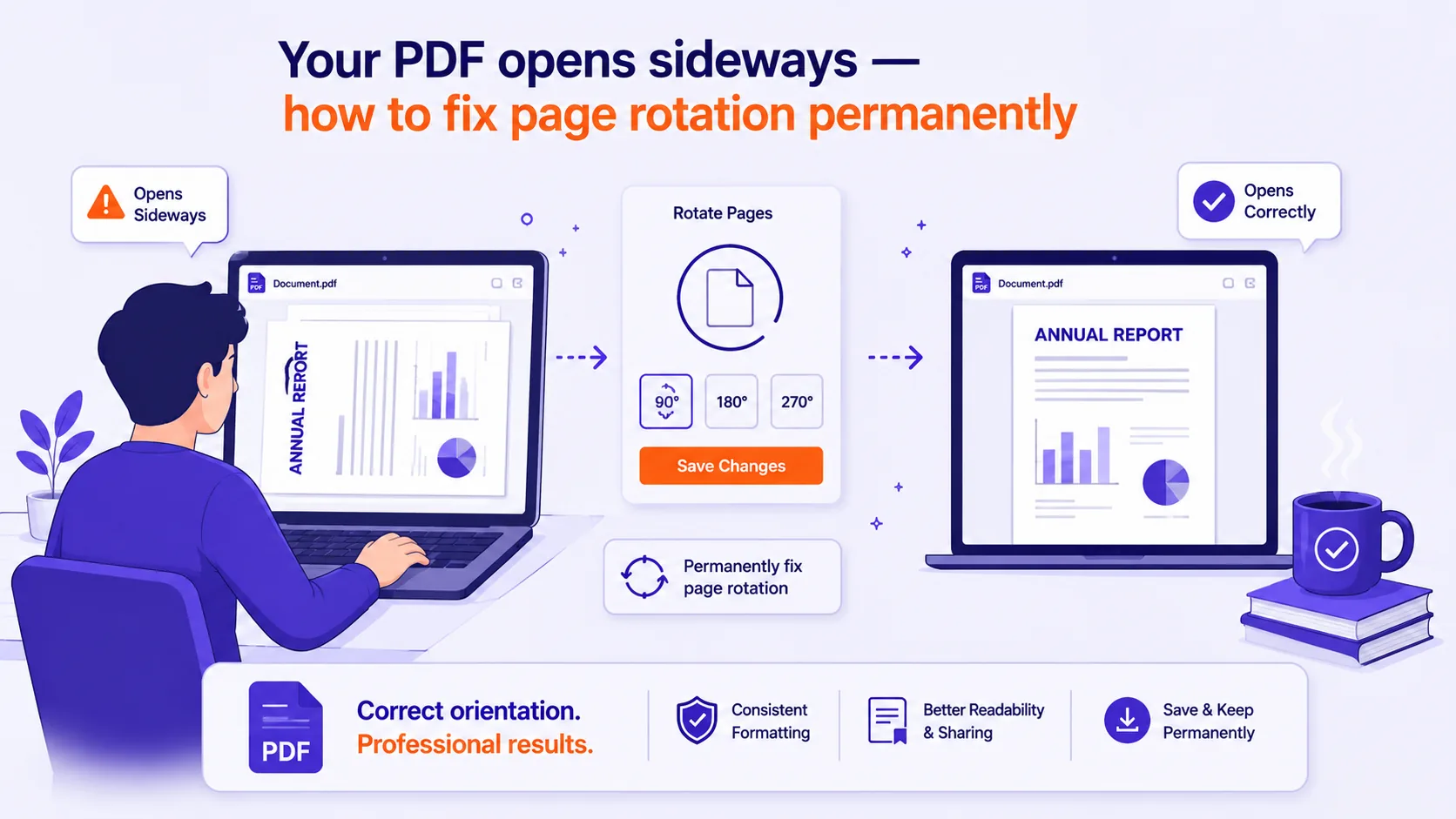
You open a scanned contract and every page is lying on its side. You click the rotate button, read the thing, close it, and the next time you open the file it is sideways again. Nothing you did was saved.
That is not a bug. Most PDF viewers ship two completely different features that both say "rotate", and the obvious one never touches the file.
The two things called "rotate"
Display rotation turns the picture on your screen and nothing else. It usually lives in the View menu, View > Rotate View in Acrobat, the rotate icons in Chrome's and Edge's built-in viewers, Tools > Rotate in macOS Preview. It is a viewport setting, like zoom level. Close the document and it is gone.
Page rotation changes the document itself. Every page object in a PDF can carry a /Rotate entry: an integer, a multiple of 90, that says how far the page should be turned clockwise when it is displayed or printed. pypdf's documentation states it plainly, "this number has to be a multiple of 90 degrees: 0, 90, 180, or 270 are valid values", and Microsoft's PDF API says the same thing from the other side: "degrees are expressed relative to a clockwise rotation". That value is written into the file. It survives closing, emailing and reopening.
Adobe puts the permanent version in a different place from the view command, under the Organize Pages tool, not the View menu. That split is exactly where people get caught.
How to tell which one you just did
Two tests, both take seconds.
- Save, close, reopen. If it is sideways again, you rotated the view.
- Look for a Save prompt. Display rotation does not dirty the document, so a viewer will let you close without asking to save. A real page rotation marks the file as modified.
If you want certainty and have the command line, pdfinfo reports page size and rotation as separate fields. On a test file I rotated with qpdf, page 1 came back as:
Page 1 size: 792 x 612 pts (letter)
Page 1 rot: 90
rot: 90 is the /Rotate value living in the file. rot: 0 on a page that looks upright on your screen means you are looking at a view setting.
Rotating a range, not the whole document
/Rotate is per page, which matters because most sideways-PDF problems are not "the whole file is wrong".
A whole document scanned in landscape. Every page is wrong the same way, so rotate everything by the same amount. One operation, done.
A single landscape table inside a portrait report. Page 14 is a wide budget table and it looks wrong on screen. Leave it alone. That page is deliberately rotated so it prints correctly on portrait paper, you tilt your head, or your reader tilts the printout. "Fixing" it makes the table print off the edge of the sheet. Rotate the pages that are wrong, not the pages that look unusual.
Alternate pages upside down. This is a duplex scanner feeding the reverse side the other way up. Odd pages are fine, even pages are at 180. The fix is to rotate only the even pages by 180 and leave the odd ones untouched.
I tested this on a four-page file with qpdf. --rotate=+180:1-z:even produced exactly that: pages 2 and 4 at rot: 180, pages 1 and 3 still at rot: 0. Note the :even here means every other page of the selected range, not "pages with even numbers", qpdf's page range syntax is explicit that odd and even "refer to positions in the final range, not whether the original page number is odd or even".
Different pages at different rotations. Check what is actually there before you change anything, because a blanket rotation makes a mixed document worse. Rotating a document that already contains a mix of 0, 90 and 270 by a flat 90 leaves you with a mix of 90, 180 and 0.
That is also why the difference between setting and adding rotation matters. qpdf documents that a leading + makes the angle relative, and I measured the difference: applying --rotate=90 twice leaves the page at 90, while applying --rotate=+90 twice leaves it at 180. Relative rotation is almost always what you want, because it does the same visible thing regardless of where the page started.
For a mixed file, the practical route is a tool that shows you page thumbnails and lets you turn individual pages. The Qikks PDF rotator does all three modes, whole document, one page at a time, or a selection, and writes the rotation into the file rather than into the view. It runs in the browser, so a scanned medical record or a signed contract never leaves your machine.
The catch with scanned pages: /Rotate does not move the pixels
Here is the part that bites people weeks later.
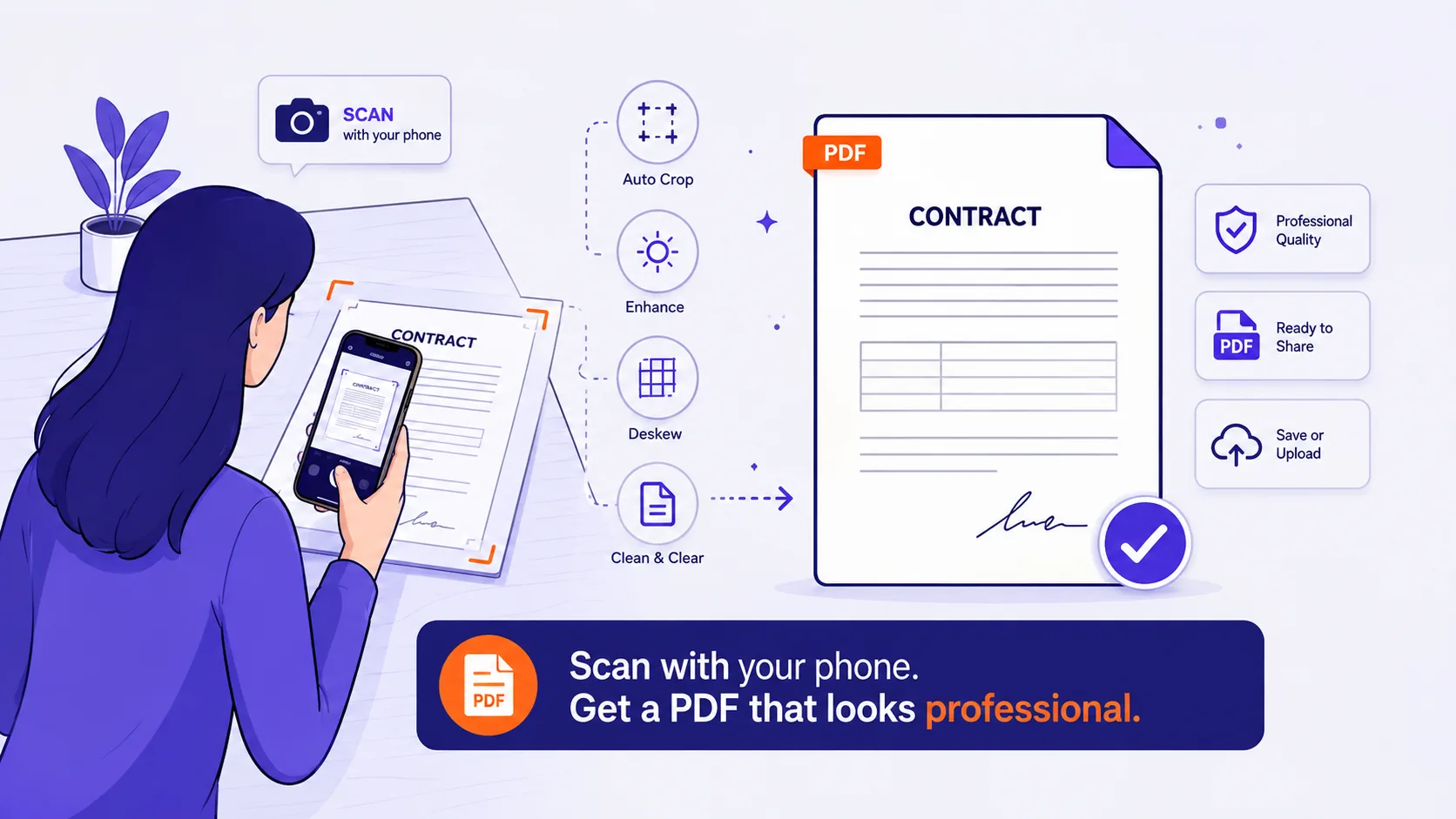
/Rotate is metadata on the page object. It does not modify the page content, and on a scan the content is one big image. The image inside the file stays exactly as sideways as it was.
I built a test to measure this: a 2200 × 1700 pixel grayscale scan of an invoice, embedded sideways in a letter-size PDF, then rotated with qpdf --rotate=+90:1.
| Before rotate | After /Rotate 90 |
After rotating the pixels | |
|---|---|---|---|
Page /Rotate |
0 | 90 | 0 |
| Rendered page, 150 dpi | 1650 × 1275 px | 1275 × 1650 px | 1275 × 1650 px |
| Embedded image | 2200 × 1700 px | 2200 × 1700 px | 1700 × 2200 px |
| Image stream | 66,843 bytes | 66,843 bytes, identical hash | 67,198 bytes, re-encoded |
| OCR of extracted image | garbage | garbage | "INVOICE 2026-0417" |
The rotated page renders upright and OCRs correctly when you OCR the rendered page. But pull the image out with pdfimages or pypdf and it is still 2200 × 1700, still on its side, and Tesseract returns nonsense, my run gave O€ JaU SW] JUBWAed where the text says Payment terms net 30.
So use /Rotate when the file will be read by humans in a PDF viewer. That is the overwhelmingly common case, and it is lossless: the image stream after rotation was byte-for-byte identical to the original, and the whole file grew by 94 bytes.
Rotate the actual pixels when the image is going somewhere else, an OCR engine you feed extracted images to, an archiving or document-management system, a print workflow, or anything that reads the image object directly. Plenty of software ignores /Rotate. Re-encoding costs you a little: my pixel-rotated version had to recompress the JPEG, producing a different, slightly larger stream. For a scan at 90-degree increments that quality loss is small, but it is not zero.
Why it looks right on screen and prints sideways
Rotation is applied after layout, not before. The CSS print model works the same way, MDN notes that with page-orientation, "margins are laid out as normal in the unrotated page, then rotated along with everything else" (MDN). A PDF page behaves identically: the content is positioned on an unrotated page, then the whole thing is turned.
That leaves three things to check when a page prints wrong:
- Your print dialog is fighting the file. "Auto-rotate and center" and "Fit to page" will re-orient pages on their own. Turn auto-rotate off and see what the file actually says.
- You rotated the view, not the page. Some drivers print what the viewer shows, some print the file. Same document, two printers, two answers.
- The page is meant to be rotated. Landscape tables in portrait reports print correctly precisely because of
/Rotate.
Rotating 90 degrees swaps width and height
The /Rotate value does not change the MediaBox. On my A4 test pages the box stayed [0 0 595 842] after rotation, but the effective displayed page became 842 × 595. My letter-size test page reported 792 x 612 pts in pdfinfo both before and after, while the rendered output flipped from 1650 × 1275 to 1275 × 1650 pixels at 150 dpi (792 ÷ 72 × 150 = 1650, and 612 ÷ 72 × 150 = 1275).
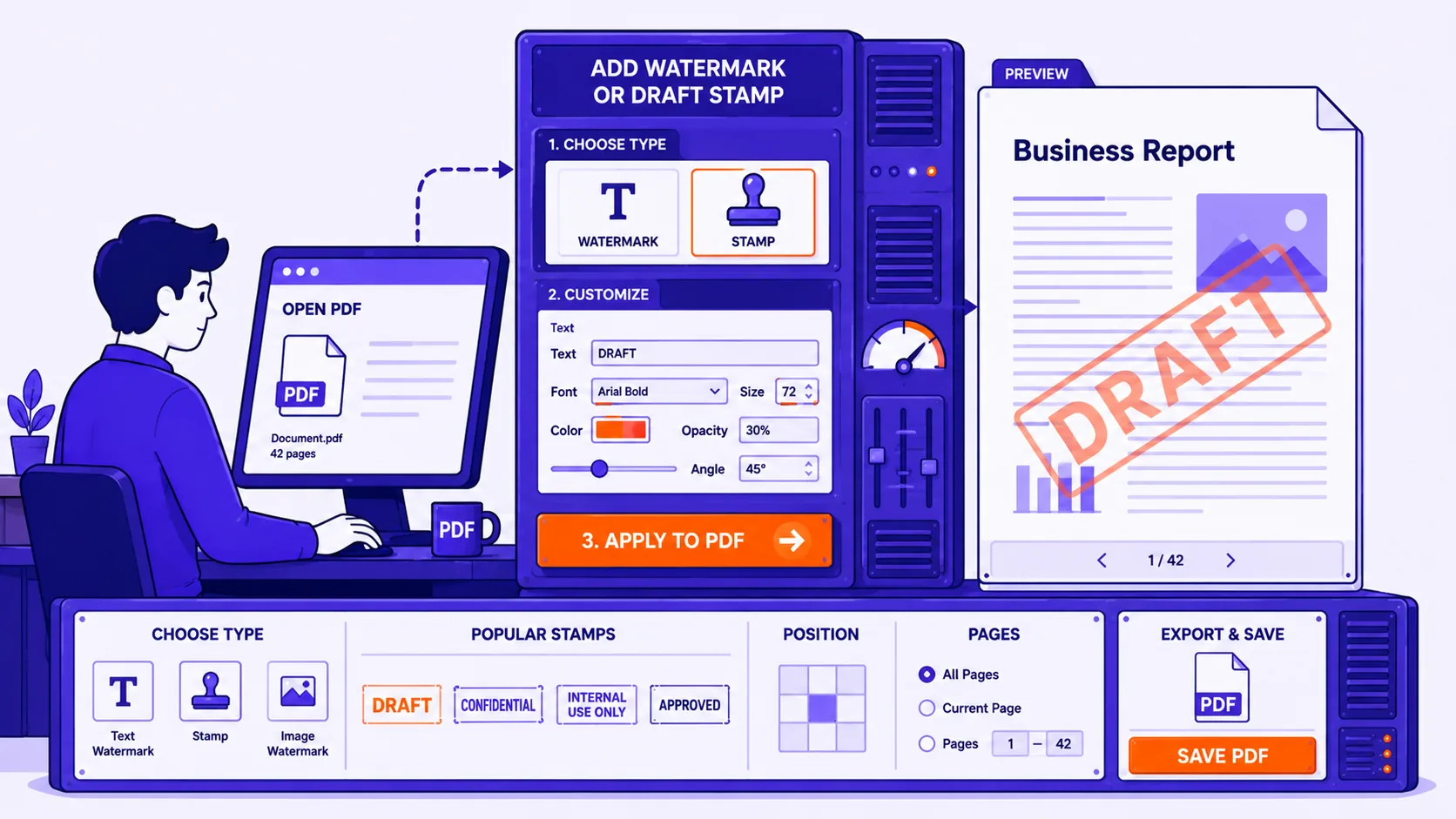
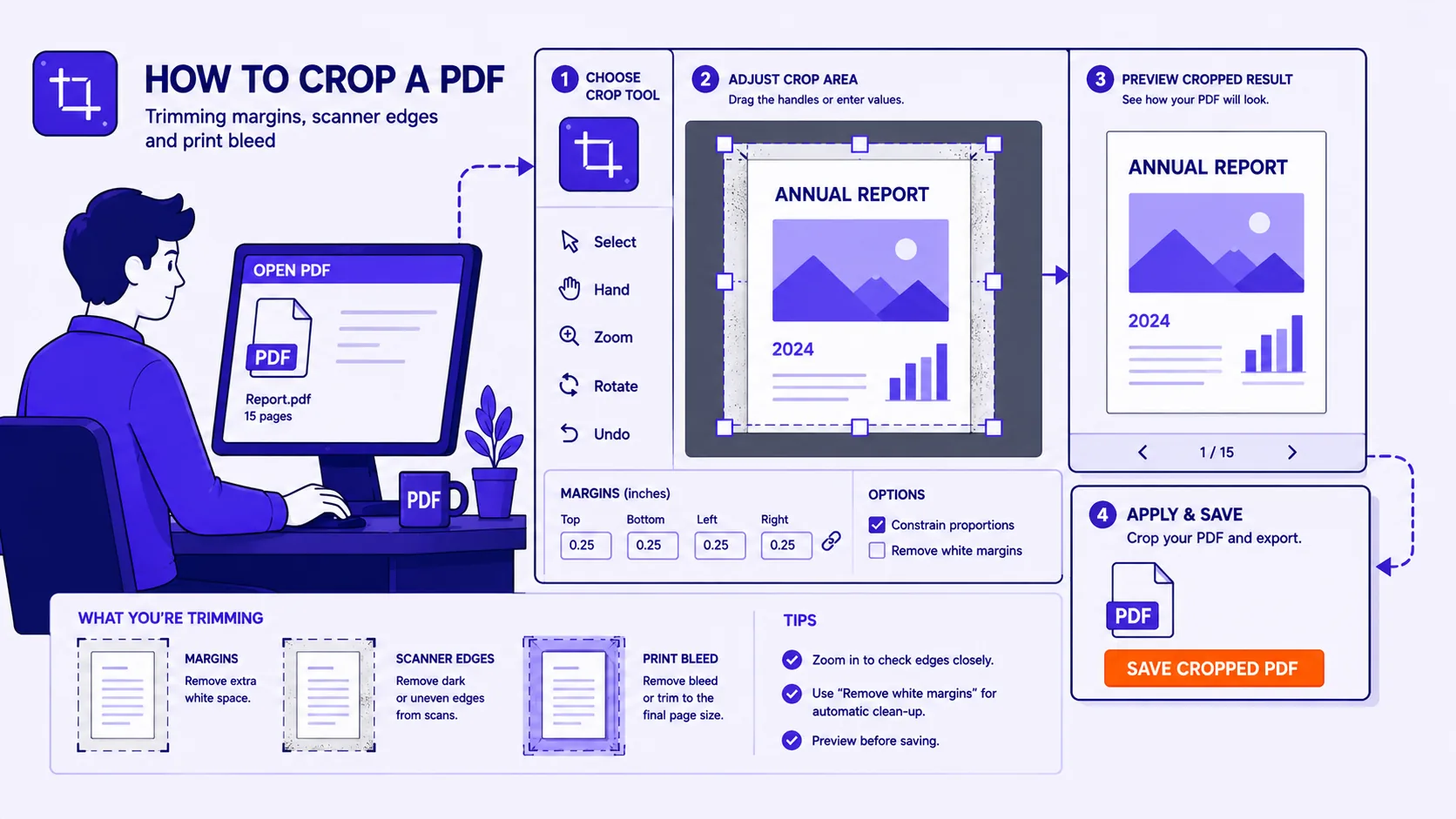
This matters downstream. Cropping, watermarking, stamping and merging tools may work in unrotated page coordinates, so a watermark placed at "bottom right" can land on the left edge of a rotated page. If you plan to crop or stamp a rotated document, fix the rotation first and then do the rest.
Before you save
- Rotate, save, close, reopen. Still right? It went into the file.
- Rotating only the pages that are wrong, not all of them?
- Left the deliberate landscape pages alone?
- Duplex scan: even pages by 180, odd pages untouched?
- Sending this to OCR, an archive, or an image pipeline? Rotate the pixels, not just
/Rotate. - Cropping or watermarking next? Do the rotation first.