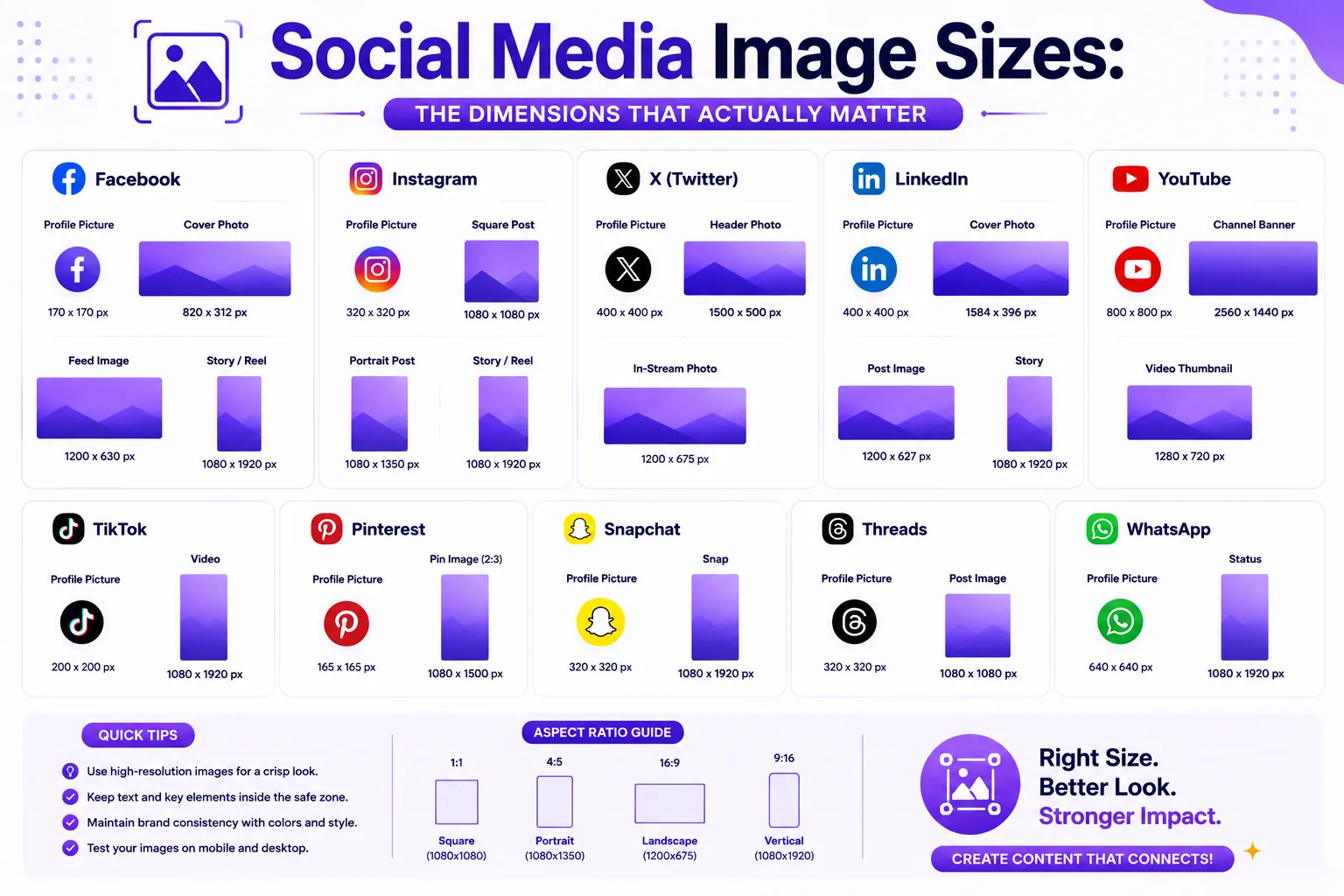
You export a 2400-pixel-wide graphic, upload it to Instagram, and the bottom line of text sits under the caption. You set a LinkedIn cover that looks right on your laptop and find the logo cropped off on your phone.
Pixel dimensions were never the hard part. The hard part is knowing which numbers are enforced, which are conventions people repeat to each other, and where the interface will sit on top of your artwork.
Two things that happen before anyone sees your image
Instagram states it uploads photos "at the best quality resolution possible (up to 1080x1080 pixels)", and that anything larger is resized down (Instagram Help Centre). Pinterest states it "converts all uploads to 8-bit RGB JPEGs" and does not support custom colour profiles (Pinterest Business help).
Both facts point the same way: the file you upload is not the file that gets served. Your job is to hand the platform something it has to change as little as possible.
Meta and X
| Placement | Upload at | Ratio | Limits and notes |
|---|---|---|---|
| Instagram feed, square | 1080 x 1080 | 1:1 | Meta's recommended feed ratio; minimum 600 x 600 |
| Instagram feed, portrait | 1080 x 1350 | 4:5 | 4:5 is the tallest ratio accepted without cropping |
| Instagram feed, landscape | 1080 x 566 | 1.91:1 | Widest accepted; minimum 600 x 315 |
| Instagram Stories and Reels | 1080 x 1920 | 9:16 | 9:16 recommended; minimum width 600 px |
| Facebook Page cover | 851 x 315 | ~2.70:1 | Minimum 399 x 150; sRGB JPG under 100 KB |
| Facebook feed image | 1200 x 630 * | 1.91:1 | Convention, not a published spec |
| Facebook event cover | 1200 x 628 * | 1.91:1 | Convention, not a published spec |
| X in-feed photo | 1600 x 900 * | 16:9 | Ratios between 2:1 and 3:4 display in full |
| X header | 1500 x 500 | 3:1 | Maximum 2 MB, JPEG/PNG/GIF |
Instagram's publishing API accepts JPEG only, up to 8 MB, at aspect ratios between 4:5 and 1.91:1 (Meta for Developers); the 600 px minimums come from Meta's media requirements. The 1080-wide figures above are simple arithmetic from the 1080 px cap: 1080 ÷ 4 × 5 = 1350, and 1080 ÷ 1.91 = 566.
Facebook's cover figures are official, Facebook recommends an sRGB JPG at 851 x 315 under 100 KB, and says PNG gives better results for covers containing a logo or text (Facebook Help Centre). X publishes 1500 x 500 for headers and 400 x 400 for profile photos, both capped at 2 MB (X Help), and caps in-feed photos at 5 MB, accepting GIF, JPEG and PNG only (X Help).
Rows marked * are the widely used community convention rather than a figure the platform publishes.
LinkedIn, Pinterest, YouTube and TikTok
| Placement | Upload at | Ratio | Limits and notes |
|---|---|---|---|
| LinkedIn feed, landscape | 1200 x 628 | 1.91:1 | Minimum 640 x 360; 5 MB, jpg/png/gif |
| LinkedIn feed, square | 1200 x 1200 | 1:1 | Minimum 360 x 360 |
| LinkedIn feed, portrait | 720 x 900 | 4:5 | Mobile-only; avoids letterboxing |
| LinkedIn profile cover | 1584 x 396 * | 4:1 | Convention, not a published spec |
| LinkedIn Page banner | 1128 x 191 * | ~5.9:1 | Convention, not a published spec |
| Pinterest standard Pin | 1000 x 1500 | 2:3 | 20 MB web, 32 MB in-app; PNG or JPEG |
| YouTube thumbnail | 3840 x 2160 | 16:9 | Minimum 640 px wide; 2 MB mobile, 50 MB desktop |
| YouTube Shorts thumbnail | 2160 x 3840 | 9:16 | Minimum 640 px tall |
| YouTube banner | 2560 x 1440 | 16:9 | Minimum 2048 x 1152; maximum 6 MB |
| TikTok image, vertical | 1080 x 1920 | 9:16 | Minimum 720 x 1280; JPG or PNG |
| TikTok image, square | 1080 x 1080 | 1:1 | Minimum 640 x 640 |
LinkedIn's feed dimensions and the 5 MB limit come from its single image ad specs. Pinterest recommends "a 2:3 aspect ratio, or 1000x1500 pixels" and warns that Pins taller than 2:3 may be cropped in feeds. YouTube's thumbnail recommendation is now 3840 x 2160 with a 640 px minimum width, and the file size cap differs by device, 2 MB uploading from mobile, 50 MB from desktop (YouTube Help). TikTok's own image ad specs set minimums of 720 x 1280 vertical, 1280 x 720 horizontal and 640 x 640 square, with a 100 MB ceiling.
Safe zones: where the interface covers your artwork
Correct dimensions do not stop the app drawing buttons on top of your image.
Stories and Reels. A 1080 x 1920 canvas is not 1080 x 1920 of usable space. The profile name and close button occupy the top; the caption, audio strip and action buttons occupy the bottom, and on Reels the right-hand column of icons eats roughly 200 px of width. The convention most designers use is to keep essential content out of the top ~250 px and bottom ~340 px, leaving a central band of about 1080 x 1330. Meta ships downloadable safe-zone templates rather than publishing those margins as a spec, so treat the numbers as a working rule, not a guarantee. TikTok does the same, it provides safe-zone files per format, and the only pixel figure it publishes is for the profile photo, where "the key element should be in the centre of the 66px*66px-sized image" (TikTok Ads Manager).
LinkedIn and Facebook covers. These are the worst offenders because the crop changes with viewport width: a LinkedIn Page banner is very wide and very short, and mobile shows a narrower slice of the centre. Design the important content into the middle 60% horizontally, vertically centred, so a narrower crop still contains it.
X header. X states that even at the recommended 1500 x 500, "60 pixels on the top and bottom could be cropped" depending on monitor and browser. That leaves a reliable band of 1500 x 380.
YouTube banner. This one is published precisely. Upload at least 2048 x 1152, and keep all text and logos inside the central 1235 x 338 safe area, that is what shows on mobile. The full width only appears on television (YouTube Help).
Pinterest. Pinterest publishes text safety zones on its Pin specs page: 270 px from the top, 65 px left, 195 px right and 790 px from the bottom.
Recompression, and how to lose less to it
Every platform re-encodes what you upload. You cannot stop it, but you can reduce how much damage it does.
- Upload at the exact target dimensions. If Instagram is going to resize a 3000 px file to 1080 px, it will do so with a generic resampler and then compress the result. Resizing to 1080 px yourself means the platform has nothing to scale and only has to re-encode.
- Match the platform's preferred format. Instagram's publishing API takes JPEG only. Pinterest converts everything to 8-bit RGB JPEG but asks for sRGB PNG on the way in. Facebook asks for sRGB JPG for covers, and PNG when the cover contains text or a logo.
- Convert to sRGB before uploading. Adobe RGB or ProPhoto files get flattened somewhere in the pipeline, and the symptom is dull, slightly shifted colour. Pinterest says outright that custom colour profiles are not supported.
- Never re-upload an already-compressed export. JPEG artefacts from your first save become image data the platform's encoder has to preserve, so it spends bits on the artefacts instead of the picture. Go back to the master.
- Do not compress to hit a limit you are nowhere near. A 1080 x 1350 JPEG at quality 85 lands around 200-400 KB. Instagram allows 8 MB.
One master file, every crop
Design once at generous size, then derive. It is faster than maintaining nine documents and it keeps the artwork consistent.
- Build the master at 2160 x 2700 (4:5, twice the Instagram portrait size). This divides cleanly to every crop you need and gives room to crop outward.
- Keep the subject centred and leave margin. Anything you want to survive a square, a 1.91:1 and a 9:16 crop has to live inside the intersection of all three, roughly the central square of the master.
- Keep text on a separate layer, not baked into the photo. Text positioned for 4:5 will be wrong for 9:16 every time; it needs repositioning per crop, not rescaling.
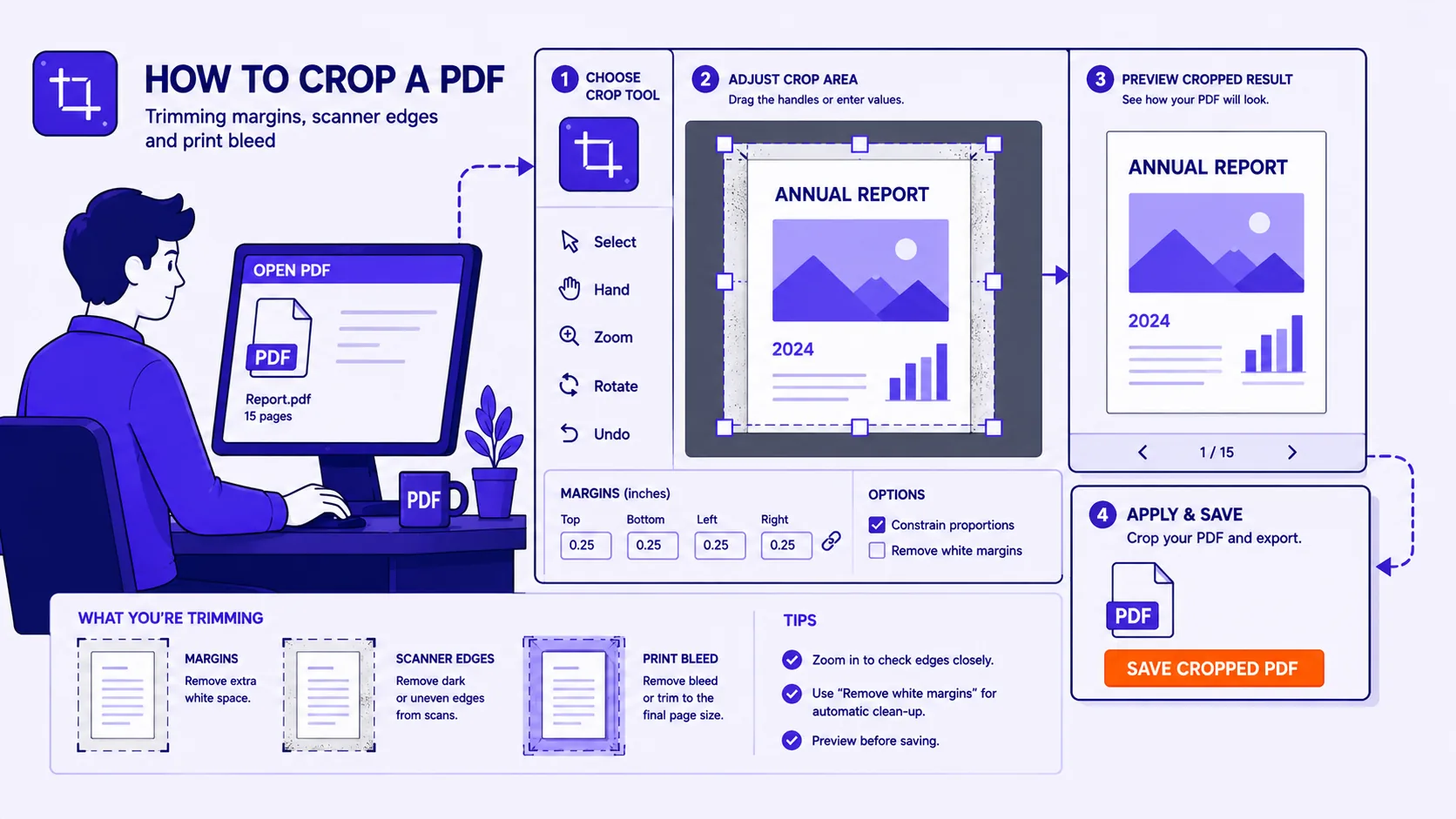
- Crop first, then resize. Change the aspect ratio with the image cropper, then scale the crop to the exact pixel target with the image resizer. Doing it in that order means one resample instead of two.
- Export each crop from the master, never from another crop. This is what prevents generational loss.
- Name files by destination,
launch-ig-1080x1350.jpg,launch-yt-3840x2160.jpg.
Before you upload, check
- Exact target pixel dimensions, not "close enough"
- sRGB colour profile
- The format the platform asks for
- Critical content inside the safe zone, checked on a phone
- Exported from the master, not re-saved from a previous export