The upload form says "maximum 10 MB" and your PDF is 47 MB. It's eleven pages of black text on white paper, which makes no sense, until you understand that most oversized PDFs aren't documents at all. They're photographs of documents, and nobody told the scanner to stop.
Here's how to find out which kind of PDF you have, and what actually shrinks it.
First: is it a scan or is it real text?
Every fix depends on this one answer, so check it before you touch anything.
Open the PDF and try to select a line of text with your cursor. If you get a clean text selection with a blinking caret, the document is born-digital, it was exported from Word, InDesign, a browser, or an invoicing system, and the letters are stored as font instructions. If your cursor draws a rectangle over the page instead, or highlights the whole page as one block, the document is a scan: each page is a single large image, and the "text" is just dark pixels arranged in the shape of letters.
A second tell: zoom to 400%. Born-digital text stays razor-sharp at any zoom. A scan goes soft and blocky.
Scans are by far the more common cause of an oversized PDF, so we'll start there.
Why one scanned page can weigh more than a whole book
A US Letter page scanned at 300 dpi is 2,550 × 3,300 pixels, 8.4 megapixels, about the same as a mid-range phone camera. In full colour with no compression at all, that's roughly 24 MB. For one page. Compression brings it down, but how far depends entirely on settings almost nobody changes.
To get concrete numbers we generated a test page, a full page of typed serif text at 300 dpi, with simulated scanner noise and a slight paper tint, because that noise is exactly what makes real scans expensive, and saved it every way a scanner might:
| How the page is stored | Size (1 page) | 20-page document |
|---|---|---|
| Colour, 300 dpi, lossless PNG | 12.6 MB | ~250 MB |
| Colour, 300 dpi, JPEG quality 90 | 2.4 MB | ~48 MB |
| Colour, 300 dpi, JPEG quality 75 | 1.3 MB | ~27 MB |
| Greyscale, 300 dpi, JPEG quality 75 | 1.25 MB | ~25 MB |
| Greyscale, 150 dpi, JPEG quality 75 | 384 KB | ~7.5 MB |
| Black & white (1-bit), 300 dpi, CCITT G4 | 81 KB | ~1.6 MB |
| Born-digital text, same words | 2–23 KB | under 0.5 MB |
Real paper, with texture, staple shadows and coffee rings, compresses somewhat worse than a synthetic page, so treat these as the optimistic end. The shape of the table is what matters: the same page of text can occupy 81 KB or 12.6 MB depending on nothing but scanner settings.
Notice the last row. The identical content, when it's real text instead of a picture of text, is around 100 to 1,000 times smaller. That's the gap you're fighting.
Two things drive the cost:
Colour depth. A colour scan stores three numbers per pixel instead of one. Worse, scanner noise is random per channel, so JPEG can't predict it away. Scanning black text in colour is paying triple for information that isn't there.
Noise. A perfectly clean white background compresses to almost nothing. A background speckled with sensor noise at ±5 brightness levels does not, the compressor faithfully preserves every meaningless speck. This is why "300 dpi colour" is the single most expensive default in office scanning.
Fixing a scanned PDF
The goal is to throw away the colour and the noise while keeping the letters legible.
- Decide what the pages actually contain. Text-only paperwork, contracts, invoices, forms, receipts, court filings, has no colour worth keeping. Anything with photographs, coloured charts, highlighter marks or signatures you need to prove are ink does.
- Pick a target resolution. 300 dpi is the floor for anything that will be OCR'd or printed; the US National Archives requires a minimum of 300 ppi for modern textual records and 400 ppi for photographs. For a document that will only ever be read on screen or emailed, 150 dpi is genuinely fine and cuts size by roughly 70%.
- Compress it. Run the file through a PDF compressor, Qikks Tools' PDF compressor does it in the browser, so a 47 MB file of somebody's medical records never leaves your machine. Start with the mildest setting and check page 1 before committing to the whole document.
- Check the small print, literally. Zoom to 100% and read a footnote, a fax header, a handwritten annotation. If those survive, the compression was safe. Superscripts and 6-point legal text are the first casualties.
- Re-scan if the source is still available. No amount of post-processing beats scanning correctly the first time. Set the scanner to Black & White (or "Text"/"Document" mode), 300 dpi, not Colour/Photo. On most office multifunction devices this is one button and it's the difference between a 1.6 MB file and a 48 MB one.
Don't compress away your searchable text
If the scan has already been OCR'd, the invisible text layer sits behind the image and costs almost nothing, a few KB per page. Aggressive compression tools sometimes discard it, which is how a searchable PDF quietly becomes an unsearchable one. Check that you can still search for a word afterwards, and if the layer is gone, run OCR again on the compressed file. OCR after compression is fine, as long as the letters are still clean enough to read.
Fixing a born-digital PDF
If your text selects properly and the file is still huge, the cause is one of four things.
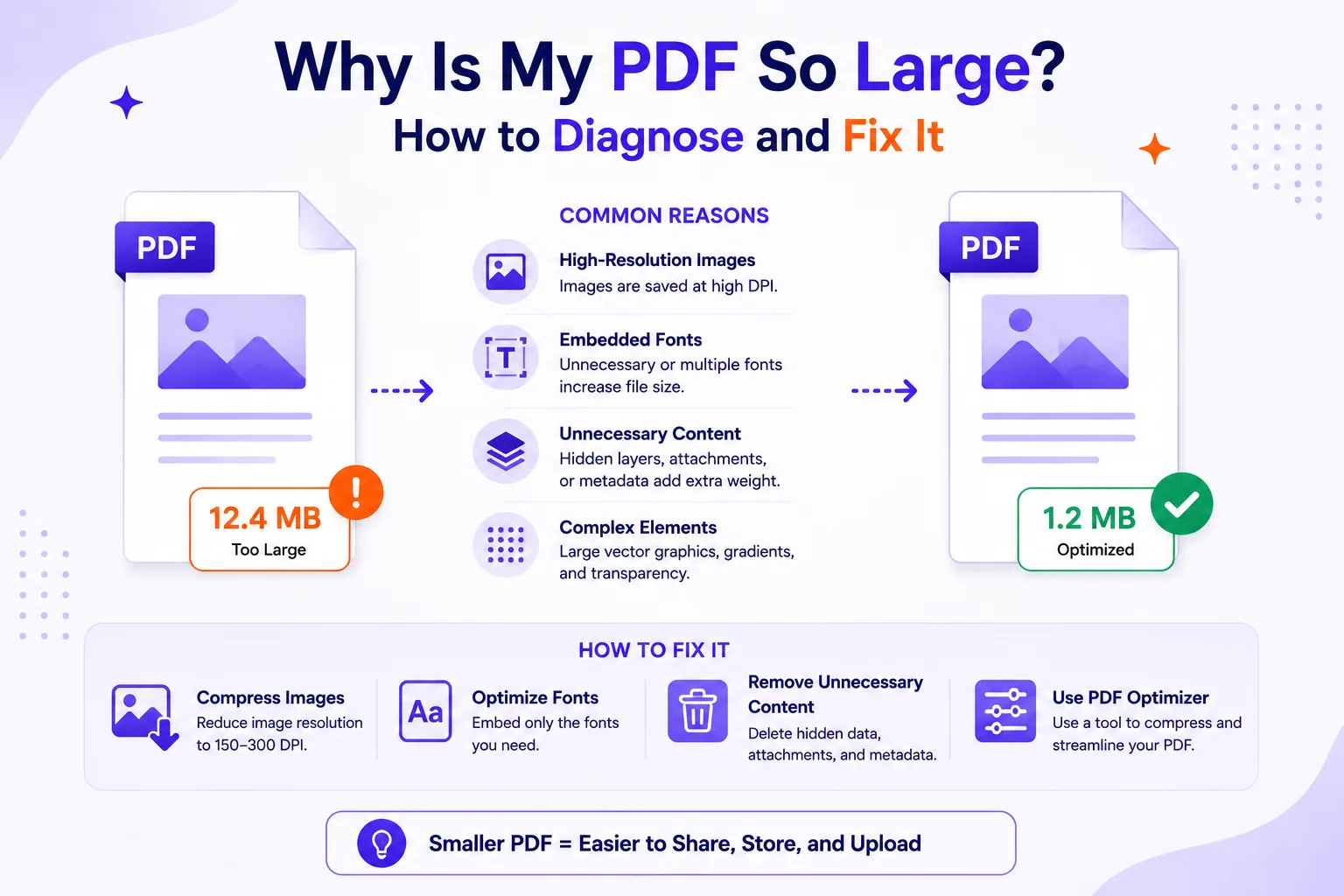
Full-resolution photos. A 12-megapixel phone photo dropped into a Word document keeps all 12 megapixels when you export to PDF, even though it's displayed at 3 inches wide. At 3 inches, a 300 dpi print only needs 900 pixels across, you're carrying 4,000. Resize images to the size they will actually be displayed at before placing them, or run them through an image compressor first. Dropping a photo from 4,000 px wide to 900 px removes about 95% of its pixels, and with them, most of its file size.
Embedded fonts. Our one-page test file was 2 KB using a standard font and 23 KB with a font embedded. That's trivial for one page, but a document using six weights of a large font family can carry several megabytes of font data. It's the price of the document looking right on every machine, and PDF/A archival files require it, so only strip fonts if you know the recipient has them.
Repeated resources. A letterhead logo re-inserted on all 60 pages can be stored 60 times instead of once. Compression tools deduplicate these automatically; it's often the single biggest win on a corporate template.
Vector artwork with too many points. A map or CAD drawing exported at full detail can be tens of megabytes of pure geometry with not a single image involved. Simplify it in the source application, no PDF tool can fix this after the fact.
What size should you actually aim for?
Work backwards from where the file is going:
| Destination | Practical ceiling |
|---|---|
| Gmail attachment | 25 MB |
| Microsoft 365 / Outlook desktop | 150 MB internally, ~112 MB to outside recipients |
| Outlook mobile app | 33 MB |
| Government / court / bank upload portals | Frequently 5–10 MB per file |
| Emailing a document someone will read on a phone | Under 2 MB is kind |
Those portal limits are the tight ones, and they're why "it sends fine to my colleague" isn't a useful test.
The 60-second version
- Try to select the text. Can't? It's a scan, and that's your problem.
- Text-only scans belong in black & white, not colour. That change alone is often a 15–30× reduction.
- 300 dpi if it will be printed or OCR'd, 150 dpi if it's screen-only.
- Compress, then zoom in on the smallest text on the page before you send it.
- Confirm the document is still searchable afterwards; re-run OCR if it isn't.
- Born-digital and still huge? Look at the images first, then repeated logos, then fonts.
The fastest fix of all is upstream: change the default on the scanner everyone in the office uses. Most of them are still set to colour because that's how they shipped.