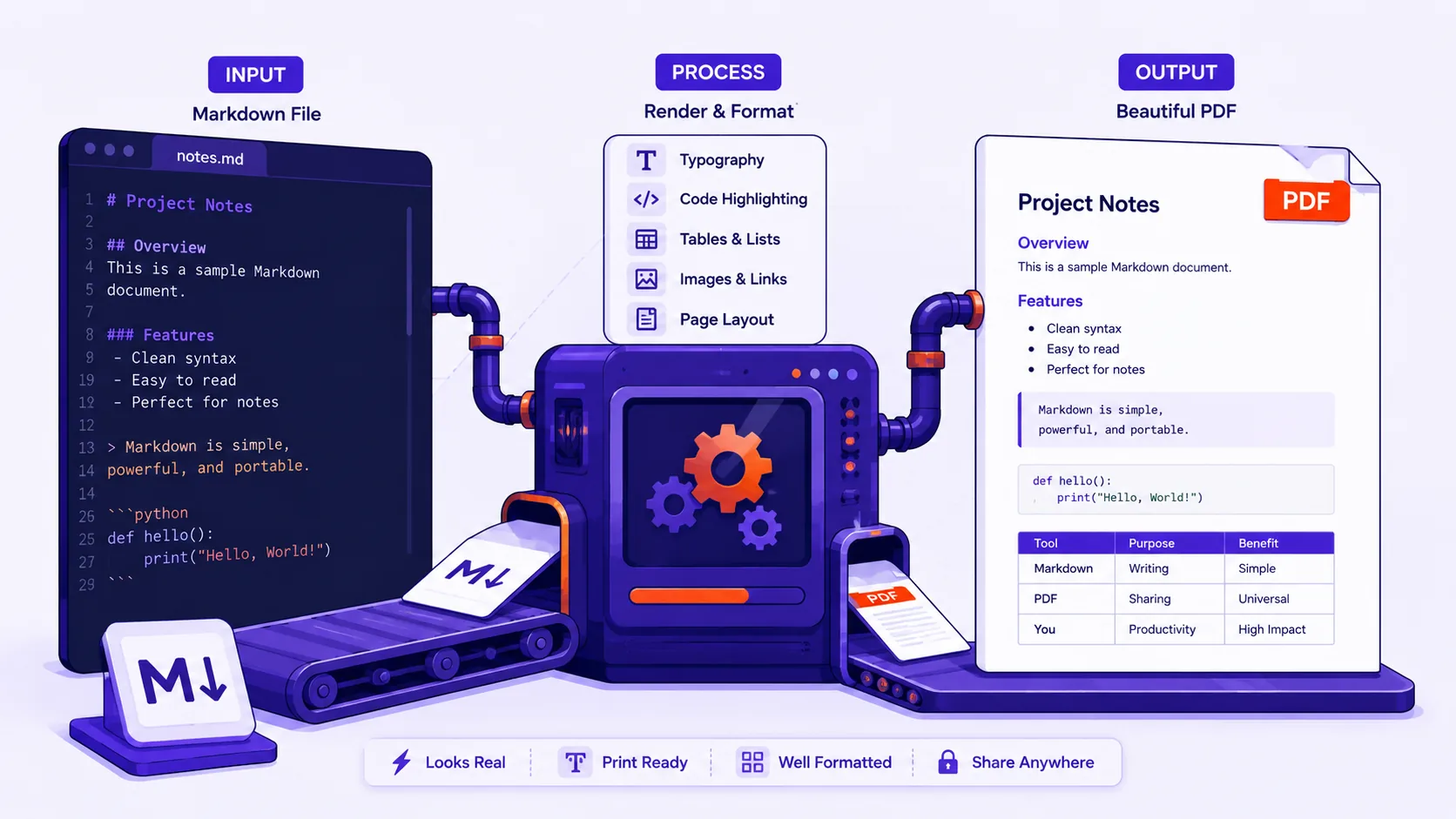
You export a spec or a README written in Markdown, open the PDF, and the first code block runs straight off the right edge with the last third of every line missing. The table on page three is clipped at the same margin, and there is a subheading sitting alone at the foot of page five with its paragraph stranded on page six.
That is not a bug in the converter. It is the predictable result of asking a format with no page model to produce a paged document.
Markdown does not know what a page is
Markdown describes a flow of blocks, headings, paragraphs, lists, code, quotes, and nothing else. The CommonMark specification defines those block and inline elements and stops. There is no page size, no margin, no page break, no text column width, and no mechanism by which a 140-character line of code could know it is about to meet the edge of a 210mm sheet of A4.
Every one of those decisions gets made downstream, by whatever renders your Markdown to HTML and then paginates it, using defaults you never chose. Fixing the output means fixing the source, or overriding the defaults with print CSS, or both.
Code lines that overflow the page
The most common failure, and one worth measuring rather than guessing. I read the advance widths out of the actual font files in a Linux sandbox: DejaVu Sans Mono advances 1233 units on a 2048-unit em (0.602 em per character) and FreeMono advances exactly 0.600 em. Against an A4 text column that gives the character count at which a line starts falling off the page.
| Side margins | Text column | 9pt | 10pt | 11pt | 12pt |
|---|---|---|---|---|---|
| 20mm | 170mm (482pt) | 88 | 80 | 72 | 66 |
| 25mm | 160mm (454pt) | 83 | 75 | 68 | 62 |
At a readable 11pt with 25mm margins, character 69 is already gone. Three responses, in order of preference:
- Reformat the source. Set your code formatter's line width to 80 columns and re-run it over the files you are quoting. This is the only fix that produces a document a person can read and copy from, and it improves the code as well.
- Soft-wrap in CSS. Set
pre { white-space: pre-wrap; }. Per MDN,prepreserves whitespace but never wraps, whilepre-wrappreserves whitespace and breaks lines as needed to fill the box. The catch is that it breaks wherever it likes, so a wrapped shell command can no longer be pasted without inspection. - Shrink the code font. Dropping code to 9pt buys roughly 20 more characters per line. Below about 8pt on A4, people stop reading it.
What you cannot do is rely on horizontal scrolling. A PDF page has no scrollbar; the overflow is simply not printed.
Tables that run off the edge
Same cause, fewer options, because a table cannot soft-wrap its column structure. In rough order of how well they hold up:
- Restructure the table. Cut columns that repeat information, transpose a wide-and-short table into a tall-and-narrow one, or split it into two tables sharing a key column.
- Turn the page.
@page { size: A4 landscape; }gives 297mm instead of 210mm, about 40 per cent more width. MDN documentssizeand the margin descriptors as working parts of@page. - Reduce the table font to 9pt and let cells wrap. Fine for reference tables, poor for long strings such as URLs or hashes.
Headings stranded at the bottom of a page
A heading whose content starts on the next page reads as an error. The fix is two rules:
h1, h2, h3, h4 { break-after: avoid; }
pre, table, figure { break-inside: avoid; }
MDN notes that the older page-break-after is treated as a legacy alias of break-after, with always mapping to page and avoid to avoid, so both spellings work. You may also see orphans and widows recommended for stray single lines; MDN marks orphans as limited availability rather than baseline, so treat it as a bonus.
No control over where a section starts
Markdown has no page break, but it does allow raw HTML, CommonMark covers this in sections 4.6 and 6.6. So you can drop an explicit break into the source where you want one:
<div style="page-break-before: always;"></div>
If you would rather have it applied consistently, put h2 { break-before: page; } in your print stylesheet so every top-level section opens a page.
Images at the wrong size
Markdown's image syntax carries a path and alt text, and nothing else. There is no width, no height, no alignment, not in CommonMark and not in the GitHub Flavored Markdown spec either. A 2400px screenshot arrives at whatever the renderer's default happens to be, usually full column width or worse. The fallback is raw HTML in the source:
<img src="architecture.png" width="480" alt="Service architecture">
Add img { max-width: 100%; } to the stylesheet as a floor so nothing exceeds the text column even if you forget a width somewhere.
Line length, and why 11pt on A4 is hard to read
WCAG success criterion 1.4.8 asks that a block of text be "no more than 80 characters or glyphs (40 if CJK)" wide. Measuring the same way as before, averaging advance widths across a sample sentence, DejaVu Serif comes out at about 0.527 em per character, which on A4 with 20mm margins at 11pt gives roughly 83 characters per line. That is over the limit, and it is why untouched Markdown exports read like a wall.
Two fixes that cost nothing: widen the side margins to 25-30mm, or raise body text to 12pt. Either lands around 72 characters, inside the classic 60-80 measure.
Fonts, and what happens when they are not embedded
Code blocks need a genuine monospace face. If the converter's font stack falls through to a proportional font, every aligned column and ASCII table in your code collapses.
Embedding matters as much as choice. The PDF Association's PDF/A FAQ states that PDF/A "requires that everything necessary to precisely rendering the document is contained in the PDF/A file, including fonts", without embedded fonts you do not have a valid PDF/A file. In an ordinary PDF, a missing font is substituted by the viewer, and the substitute has different metrics, so line breaks and table columns shift on someone else's machine.
Which Markdown features survive the trip
The biggest source of surprise is assuming your renderer speaks the same Markdown as GitHub's web interface. It usually does not.
| Feature | In CommonMark | In the GFM spec | Notes |
|---|---|---|---|
| Tables | No | Yes (4.10) | Widely supported, still an extension |
| Task lists | No | Yes (5.3) | Checkbox rendering varies |
| Strikethrough | No | Yes (6.5) | Safe in practice |
| Raw HTML | Yes (4.6, 6.6) | Yes, filtered | GFM's disallowed-raw-HTML extension strips some tags |
| Footnotes | No | No | GitHub renders them, but not in wikis, and not in the spec |
| Math | No | No | GitHub renders $...$ via MathJax; most converters do not |
| Mermaid diagrams | No | No | GitHub renders these client-side from a mermaid code fence |
| YAML front matter | No | No | Not a Markdown feature at all |
The practical rule: tables, task lists and strikethrough usually make it. Footnotes, math, diagrams and front matter are renderer-specific, and if the converter does not implement them you get the raw source printed, a literal [^1] in the text, or your entire front-matter block sitting on page one. Export a one-page test file containing each feature you rely on before committing to a pipeline.
Headers, footers and page numbers
Markdown cannot express these at all. Nor, in practice, can print CSS: MDN lists the sixteen page-margin at-rules such as @top-center and @bottom-right and notes they have not been supported by any user agent yet, along with the page counters that would supply the numbers.
That leaves three routes: the browser's own print dialogue, which can add a header and footer with the filename, date and page numbers; a converter that implements running headers itself; or a dedicated print engine of the kind used for book production. For a one-off document, running the file through Markdown to PDF and checking the result against the list below is faster than debugging a stylesheet.
Before you export: the checklist
- Grep the source for lines over 80 characters inside code fences, and reformat them.
- Count the columns in every table. More than five on A4 portrait means restructure or go landscape.
- Give every image an explicit width, or a
max-width: 100%rule backing it up. - Set body text to 12pt with 25mm margins, or accept lines past the 80-character guideline.
- Add
break-after: avoidon headings,break-inside: avoidon code blocks and tables. - Insert explicit page breaks where a section must start on a fresh page.
- Test one page containing your footnotes, math and diagrams first.
- Strip the front matter, or confirm the converter hides it.
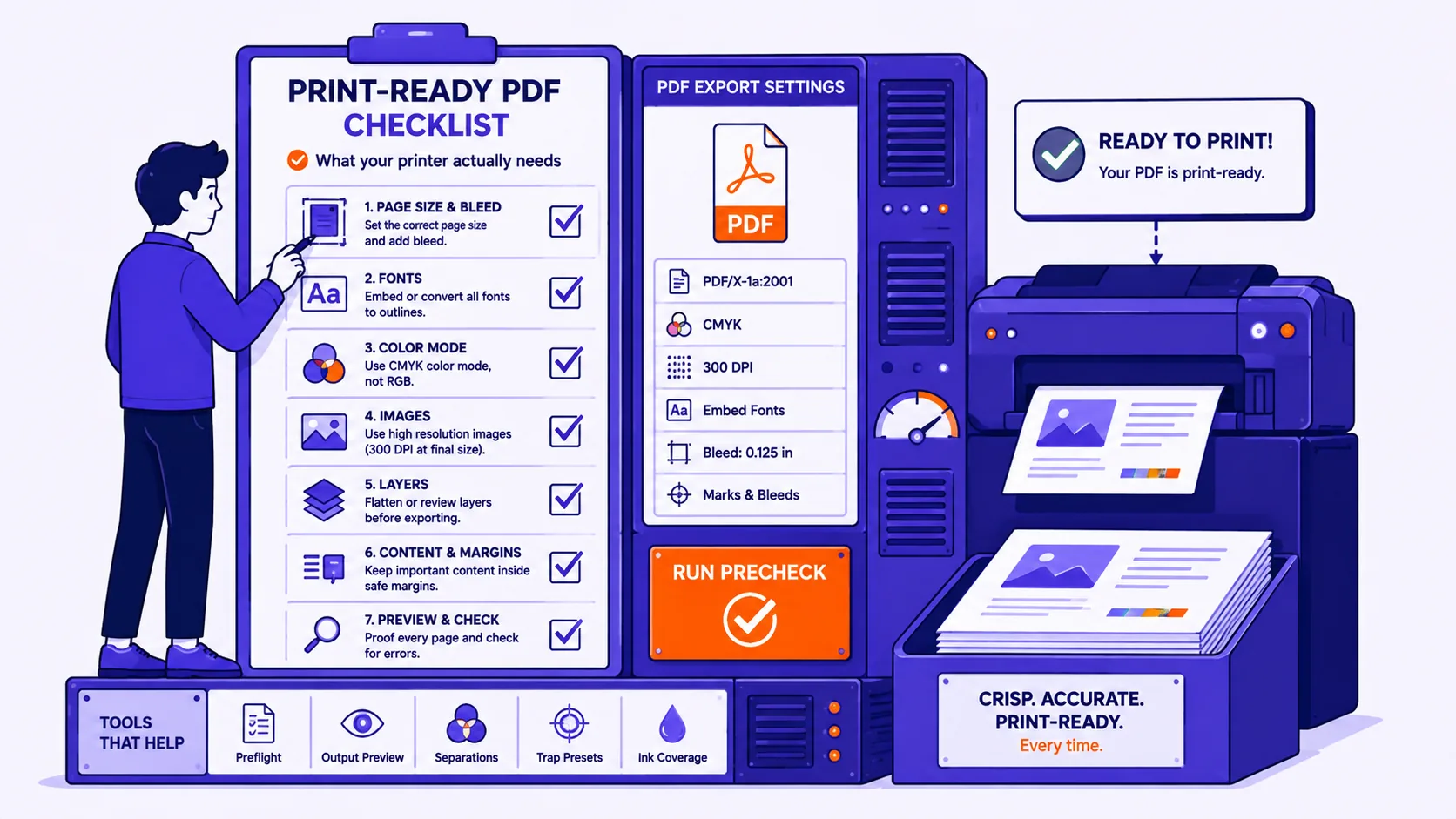
- Check fonts are embedded, then read page one at 100 per cent zoom rather than fit-to-window.