The photo looks upright in your phone's gallery. You upload it to your product listing, your CMS, or a print order, and it arrives lying on its side. Nothing you did rotated it, and opening the file on your desktop shows it upright again, which makes the whole thing feel like a bug in someone else's software.
It usually is not a bug. It is a disagreement about a single number stored in the file.
The sensor only points one way
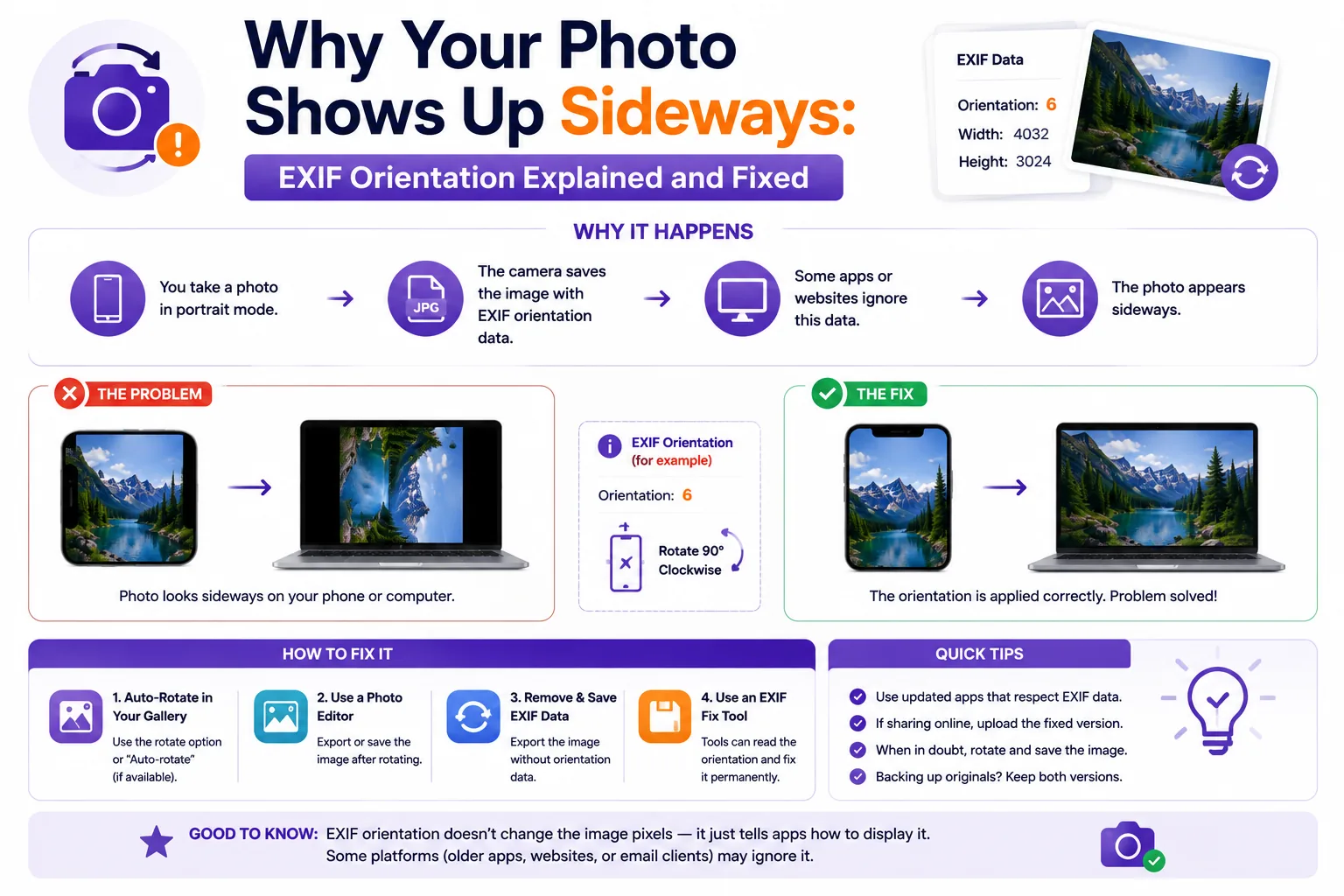
A camera sensor is a fixed rectangle soldered into a fixed position. It always reads out pixels in the same physical order regardless of how you are holding the body. When you turn a phone sideways to shoot a portrait, the sensor does not turn with the scene, it records the same landscape grid it always records, with the scene lying on its side inside it.
What changes is a separate tilt reading. Phones use the accelerometer; many DSLRs use a dedicated gravity sensor. The camera reads which way was down at the moment of capture and writes a small metadata field into the file: Exif tag 0x0112, described in the standard tag list as "the image orientation viewed in terms of rows and columns".
So the pixels are stored one way, and a note attached to the file says how to turn them for display. Every part of the pipeline that renders that image has to read the note and act on it. Any part that does not, shows you the raw sensor grid.
The eight values
The tag does not store degrees. It stores where the first stored row and the first stored column belong in the real scene, which is why there are eight values rather than four, the extra four cover mirrored images, produced by front-facing cameras, some scanners, and film scanned emulsion-side down.
| Value | 0th row | 0th column | Transform needed to display correctly |
|---|---|---|---|
| 1 | top | left | None, stored as shot |
| 2 | top | right | Mirror horizontally |
| 3 | bottom | right | Rotate 180° |
| 4 | bottom | left | Mirror vertically |
| 5 | left | top | Mirror horizontally, then rotate 90° counter-clockwise |
| 6 | right | top | Rotate 90° clockwise |
| 7 | right | bottom | Mirror horizontally, then rotate 90° clockwise |
| 8 | left | bottom | Rotate 90° counter-clockwise |
The row/column definitions come from the Exif orientation reference table. I checked the transform column by hand in a sandbox: I built a 120×80 JPEG with a black bar along its stored top edge, wrote each of the eight values into it, and rendered it with a compliant transform. With value 6 the black bar came out on the right edge of an 80×120 image, confirming a 90° clockwise correction; with value 8 it came out on the left.
Values 1, 6, and 8 cover almost everything you will meet in practice. Value 3 shows up when someone shoots with the phone upside down.
Where it goes wrong
Software that ignores the tag. Older desktop viewers, image libraries used with default settings, and a lot of internal tooling read only the pixel grid. In browsers this is now largely solved: EXIF orientation is honoured by default, and image-orientation defaults to from-image, with support landing in Chrome 81, Safari 13.1, and Firefox 26. Server-side and desktop code is the weak link now, not the browser.
Pipelines that strip metadata. This is the most common cause. Upload handlers, resizers, and CDN transforms routinely discard EXIF to save bytes and remove GPS data. The moment the tag is gone, the file has no note attached, and every viewer falls back to the sensor grid. I confirmed the shape of this: a 1200×800 JPEG carrying Orientation 6 renders as 800×1200 in a compliant viewer, but after re-saving it through a library with metadata dropped, the tag reads as absent and the image is 1200×800 again, visibly sideways. The pixel data never moved.
Canvas round-trips. Anything that draws an image into a <canvas> and re-encodes it produces a new file with no EXIF at all. Browsers do apply the tag when decoding, so the canvas contents are usually upright, but createImageBitmap accepts imageOrientation: "none" to ignore the metadata, and code that sets it, or that decodes by other means, bakes the sideways version in permanently.
The double rotation. A tool rotates the pixels but leaves the tag alone. Now a viewer that respects the tag rotates the already-correct pixels a second time. In my test I rotated the pixels of the Orientation 6 file so they were stored upright at 800×1200, left the tag at 6, and a compliant renderer turned it back to 1200×800, worse than where it started. jpegtran -rotate 90 -copy all does exactly this: it rotated the pixel data to 800×1200 and copied the original Orientation 6 straight through.
That is why the same photo can look right in one app and wrong in another. Two apps are not disagreeing about the image; one is reading the note and one is not.
Rotating the flag versus rotating the pixels
These are two different operations and they are not interchangeable.
Rewriting the tag is instant, costs nothing in quality, and is the correct fix when the file will be viewed by software you trust to read EXIF. Rotating the pixel data physically reorders the image so the stored grid is upright, after which the tag should be reset to 1.
For a website, a print shop, a marketplace listing, or anything handed to a third party, rotate the pixels. You do not control what strips metadata downstream, and a file that only looks correct because of a flag is a file that will eventually look wrong. If you use a tool like the Qikks image rotator, the output has the pixels physically turned, so nothing further in the chain can undo it.
The quality cost, and how to avoid it
JPEG is lossy, so decoding and re-encoding to rotate throws away detail every time. But rotation by an exact multiple of 90° can be done losslessly, by permuting the 8×8 DCT blocks inside the compressed data without ever decoding to pixels.
I measured both paths on a synthetic 1200×800 JPEG, rotating it 90° four times so it returned to its starting position. Root-mean-square pixel difference against the original:
| Method | RMS error after 4 rotations | Final file size |
|---|---|---|
| Decode/re-encode at quality 95 | 2.38 | 84,662 bytes |
| Decode/re-encode at quality 90 | 2.16 | 63,885 bytes |
| Decode/re-encode at quality 85 | 2.62 | 54,170 bytes |
Lossless DCT transform (jpegtran) |
0.00 | 68,696 bytes |
The original was 68,696 bytes. The lossless path returned to that byte count with pixel data identical to the original. A single 90° rotate-and-return at quality 90 already measured 1.15 RMS, so one careless round-trip costs real detail.
One caveat I hit in testing: lossless transforms need dimensions that fit the block grid. jpegtran -rotate 90 -perfect succeeded on the 1200×800 file and refused on a 1195×797 crop with "transformation is not perfect", because the edge blocks are incomplete. Without -perfect, jpegtran handles those edge blocks anyway, but strict losslessness is only guaranteed on multiple-of-8 (or multiple-of-16 with chroma subsampling) dimensions. Camera output is nearly always sized to fit.
What to do
- Check the tag before anything else.
exiftool -Orientation -ImageWidth -ImageHeight file.jpg. If the tag reads 6 or 8 and the stored width exceeds the height, the file is correct-but-flagged, not broken. - Wrong in the browser, right on your desktop? The tag was stripped somewhere in your upload path. Fix the pipeline, or upload files with the pixels already rotated.
- Rotates too far, or lands upside down? Something rotated pixels without clearing the tag. Set Orientation to 1:
exiftool -Orientation=1 -n file.jpg. - Shipping to a website, marketplace, or print shop? Physically rotate the pixels and reset the tag to 1. Do not rely on the flag. The rotate tool runs in your browser, so the file is not uploaded anywhere.
- Rotating a JPEG you care about? Use a lossless 90° transform rather than re-saving. Re-encoding costs measurable detail every pass.
- Mirrored, not rotated? You are looking at values 2, 4, 5, or 7. A plain rotation will never fix it; you need a flip.