You need page 3 of a PDF inside a slide deck by lunchtime, and the deck will not accept a PDF. Or you are sending a one-page form to someone whose mail client shows attachments as a paperclip nobody clicks, and you want the page visible in the message body.
Same job in both cases: turn a PDF page into an image. Other versions: embedding a diagram in a Word document, putting a signed certificate on a web page, sending someone a page they cannot easily edit.
The conversion itself takes seconds. The part that goes wrong is resolution, and it goes wrong before you click anything.
A PDF page has no resolution until you pick one
A born-digital PDF stores text as glyph outlines and drawings as vector paths, positioned in a coordinate system whose default unit is 1/72 inch (the UserUnit default in ISO 32000-2). An A4 page is 595 x 842 of those units. They are not pixels, and nothing in the file says how many pixels the page should become.
That decision is yours, made at the moment you rasterise. Pick too low and text turns to mush; pick too high and you email someone a 5 MB picture of a letter.
One exception: photographs and scans already inside the PDF have a fixed pixel count of their own. Rendering a page whose only content is a 200 dpi scan at 600 dpi produces a bigger, softer image, not a better one.
The arithmetic
Pixels = inches x dpi. A4 is 210 x 297 mm, which is 8.268 x 11.693 inches. US Letter is 8.5 x 11 inches.
| Render dpi | A4 pixels | US Letter pixels | Good for |
|---|---|---|---|
| 72 | 595 x 842 | 612 x 792 | Thumbnails and contact sheets; body text is barely legible |
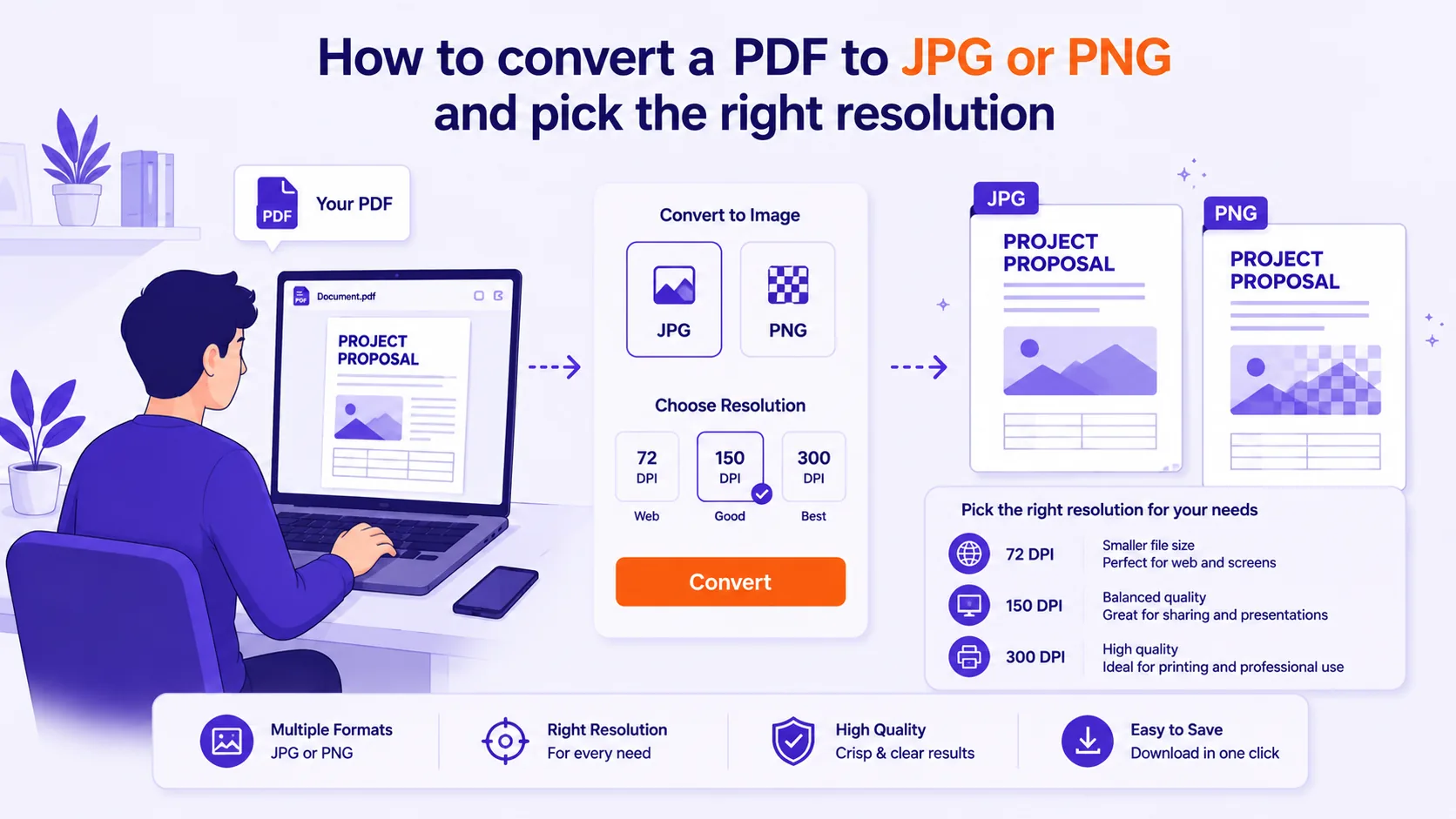
| 150 | 1240 x 1754 | 1275 x 1650 | Slides, email previews, most web use, on-screen reading |
| 300 | 2480 x 3508 | 2550 x 3300 | Printing, reading fine print, tables and footnotes, OCR input |
| 600 | 4961 x 7016 | 5100 x 6600 | Large-format print, archival capture of very small type |
Renderers round these off by a pixel: my A4 test page rendered with Poppler's pdftoppm came out 596 x 842, 1241 x 1754, 2481 x 3508 and 4961 x 7016.
Work backwards from where the image will be displayed. PowerPoint's on-screen show 16:9 preset is 10 x 5.625 inches. A full A4 page scaled to fill that slide height is 5.625 inches tall, so a 72 dpi render (842 px) lands at about 150 effective ppi on the slide, acceptable on a projector, visibly soft on a modern laptop screen. The same page rendered at 150 dpi gives 1754 px, or roughly 310 ppi at display size, which nobody will complain about. For slides and web use, 150 dpi is the sensible default; go to 300 only when someone will print it or zoom in.
JPG or PNG for a page of text
The instinct is that JPEG is the small format. For black text on white, that instinct is backwards.
JPEG is lossy and, by default, throws away colour resolution: libjpeg's standard setting is 2x2 subsampling, also known as 4:2:0, which stores the colour channels at half resolution horizontally and vertically. It also compresses in 8x8 blocks. Both behaviours do their worst damage at exactly the thing a document page is made of, hard, high-contrast edges, which is why MDN warns that lossy compression on "content requiring sharpness, like diagrams or charts, can produce unsatisfactory results" and recommends PNG when precise reproduction is required. PNG is lossless by design and compresses large runs of identical pixels, like the 80% of a page that is plain white, extremely well.
I measured this rather than assuming it: I generated a text-heavy A4 page (a heading, 52 lines of 9.5 pt body text, a ruled table), rendered it with pdftoppm at four resolutions, and measured the files:
| Render dpi | PNG | JPEG quality 85 | JPEG quality 95 |
|---|---|---|---|
| 72 | 138 KB | 157 KB | 234 KB |
| 150 | 473 KB | 506 KB | 754 KB |
| 300 | 588 KB | 1,334 KB | 1,982 KB |
| 600 | 1,288 KB | 3,450 KB | 4,969 KB |
PNG was smaller at every resolution, and the gap widened as resolution rose: at 600 dpi the PNG was under a third the size of the quality-95 JPEG, and it was pixel-exact rather than approximate. Note the odd-looking jump from 150 to 300 dpi in the PNG column, only 115 KB. At 150 dpi a large share of pixels are grey anti-aliasing along letter edges, which compresses poorly; at 300 dpi far more of the page is pure white, which compresses almost for free.
So: PNG for pages of text, tables, line drawings, screenshots and logos. JPEG for pages that are essentially a full-bleed photograph. A scanned photo page at 150 dpi will usually be smaller as JPEG, and the artefacts will not be visible against continuous tone.
Transparency, anti-aliasing and edges
PNG supports an alpha channel; JPEG has none. If you want a diagram to sit on a coloured slide background without a white rectangle around it, you need PNG and a renderer that will draw the page on a transparent background rather than compositing it onto white.
Anti-aliasing is the other reason to prefer PNG at moderate resolutions. At 150 dpi, what makes small text readable is the ring of grey pixels softening each glyph edge. JPEG's block transform and chroma subsampling smear precisely those pixels, producing the faint coloured haze you see around text in badly converted pages. Leave text anti-aliasing on, it is doing real work, and let PNG store it exactly.
Whole document, single page, and file naming
Exporting a whole PDF gives one image per page, and the names decide whether they stay in order. Zero-pad them: page-001.png through page-140.png sorts correctly everywhere, while page-1.png puts page 10 immediately after page 1 in most file managers and upload dialogs.
If you only need one page, extract that page first and convert it, rather than exporting 140 images and deleting 139. When you need a specific page or two from a longer file, convert the PDF to images in the browser and take only the pages you want, no upload, which matters when the document is a contract or a medical record.
Mixed page sizes are the trap in whole-document export. Resolution is per inch, not per page, so a document containing A4 portrait pages and one A3 landscape drawing rendered at 300 dpi yields 2480 x 3508 images plus one 4961 x 3508 image. If the destination needs uniform dimensions, a CMS gallery, a slide template, specify a target pixel width instead of a dpi, or pad the odd pages afterwards.
After conversion, the text is not text any more
This is the consequence people discover a week later. A rendered page is a grid of pixels. Nobody can select a clause from it, Ctrl+F finds nothing, screen readers see an image and read out whatever alt text you supplied, the whole reason WCAG's images-of-text criterion exists is that "people cannot alter how text looks in images". Hyperlinks stop working, the layout will not reflow on a phone, and the file is usually larger than the PDF page it came from.
Sometimes that is exactly the point:
- You want a page that cannot be casually edited and re-sent. Treat this as friction, not security, anyone can retype it or run OCR.
- The destination only accepts images: a social post, an image-only upload field, a slide.
- You need the page to look identical everywhere, regardless of missing fonts.
It is a mistake when the document will need to be searched, quoted, translated, reused by someone else, or read on a phone, and for anything that has to meet accessibility requirements. For those, keep the PDF and share the PDF.
The trip back, and why not to make it
Wrapping images back into a PDF works, but it undoes nothing. The pages are still pictures; the new PDF has no text layer until you run OCR, and OCR accuracy depends on the render, so feed it 300 dpi rather than 150. Each round trip compounds the loss: rasterising discards structure permanently, and if you used JPEG, every re-save re-encodes and softens edges again. Never convert a PDF to images to make an edit, edit the PDF.
Quick checklist
- Slide, email or web use: 150 dpi. Print or fine print: 300 dpi. Thumbnails: 72 dpi.
- Text, tables, diagrams, screenshots: PNG. Full-page photographs: JPEG at quality 85.
- Check whether the page is really a scan first, do not render above the scan's own resolution.
- Zero-pad filenames for multi-page exports.
- Before you send it, ask whether anyone will need to search or copy that text. If yes, send the PDF too.