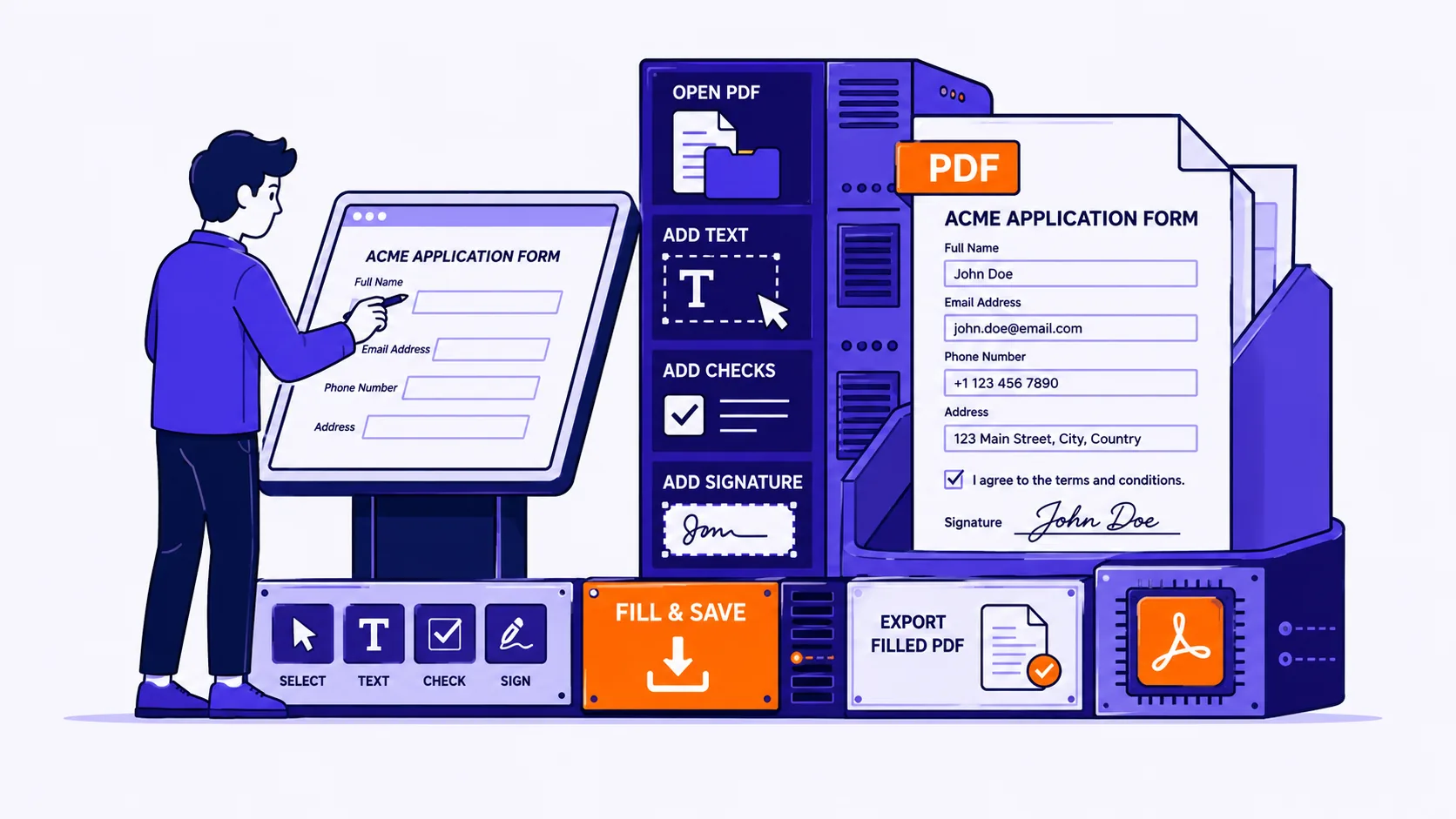
A landlord, a school office or a county clerk sends you a PDF, you click on the first blank line, and the pointer turns into a text-selection I-beam instead of dropping a caret into a box. The page clearly has boxes, ruled lines and little printed squares on it, but the file itself does not believe it contains a single form field.
Three different things produce that symptom and the repair differs for each. Thirty seconds of diagnosis will save you an hour of fighting the wrong problem.
Work out what you are actually holding
Press Tab. In a real interactive form, an AcroForm, the field model defined in the PDF specification itself, the caret jumps from one field to the next in the author's tab order, and most viewers tint those fields pale blue or grey. If Tab moves a caret, skip to the flattening section and just fill the thing in.
Look for a "Please wait" page. If the document is replaced by grey text reading "Please wait... If this message is not eventually replaced by the proper contents of the document, your PDF viewer may not be able to display this type of document", you have an XFA form: an XML form layer Adobe put on top of PDF, mostly authored in LiveCycle Designer and its successors. The fields live in an XML stream that an ordinary PDF renderer knows nothing about.
XFA is on the way out: the ISO committee deprecated it in PDF 2.0, and it is not permitted in PDF/A. It renders in Acrobat and Reader on desktop and in Firefox, which added XFA form filling in Firefox 93; Chrome's viewer does not, and most mobile viewers do not. Even Acrobat will not let you edit the structure, Adobe's guidance is to print to a new PDF instead. Fill it in Reader or Firefox; if you need to change the layout, flatten it and treat it as the third case below.
Try to select the label text. If Tab does nothing and there is no "Please wait" page, you have a flat page. Selectable printed words mean a born-digital page whose "fields" are just drawn rules and typeset labels; nothing selectable means the page is a scanned image, a photograph of paper.
| What you have | Tell | What works |
|---|---|---|
| AcroForm | Tab moves a caret; fields tint | Type directly, then flatten |
| XFA | "Please wait..." placeholder page | Acrobat/Reader or Firefox only |
| Flat, born-digital | Label text is selectable, no caret | Add text on top |
| Flat scan | Nothing is selectable | Add text on top; OCR if you need the words |
Typing on a flat page so it does not look pasted on
Anyone can drop a text box on a PDF. The difference between a form that reads as filled in and one that reads as vandalised is four small pieces of craft.
Match the size to the form, do not guess it. Set your first entry, zoom to 200% and put it beside a printed label. Your answer should be the same size as the form's own type or slightly smaller, a name at 14 pt next to 9 pt labels looks like a ransom note. If the form is ruled, measure the gap: quarter-inch ruling is 18 points (0.25 × 72, since one PDF unit is 1/72 inch), so anything much above 12 pt crowds the line above.
Sit the baseline on the printed line. The rule on the paper is the baseline, and descenders in g, p and y should hang below it exactly as they do in the printed labels. Text hovering two points above the rule is the most obvious tell that something was pasted on afterwards.
Keep one left edge down the whole column. Note the x-position of your first entry and reuse it below. Forms are typeset on a grid, so answers each starting a couple of points apart look wrong even to someone who could not say why.
Use a plain sans or a monospace face. Helvetica, Arial or Courier are all fine and all render everywhere. Avoid script and handwriting fonts entirely: they do not read as handwriting, they read as a font that is pretending, and they are harder for the clerk to read.
Checkboxes, dates and address blocks
- Checkboxes. A capital X centred in the box, at roughly the box's own height, is clearest and survives photocopying. A drawn tick works if the tool has a freehand pen, but keep it inside the box, a tick spilling over the edge invites a query about which option you meant.
- Dates. Use the format the form prints. If the boxes say DD/MM/YYYY, write
07/09/2026, notSept 7 2026. If the date is split into character cells, place each digit in its own cell rather than running text across them. - Address blocks. Do not type a multi-line address into one box and let it wrap. Create one text object per printed line, each on its own baseline, so the block keeps the form's line spacing instead of your editor's.
A browser-based tool such as the Qikks PDF editor handles this without an install, and because it processes the file locally, a rental application carrying your date of birth, employer and bank details never leaves your machine.
Signatures: what each option is actually worth
There are three ways people sign a flat PDF, and they are not equivalent.
| Method | Looks like | What it actually proves |
|---|---|---|
| Scanned signature image | Real ink, if the background is removed | Nothing by itself, it is a picture, copyable from any document you have already signed |
| Drawn with trackpad or finger | Visibly shaky; finger on a phone is better than a trackpad | The same as the image: it is a mark on a page |
| E-signature service | A typed or drawn mark plus a certificate or audit record | Ties the signing to an identity, a time and a specific version of the document |
If you use a scanned image, sign in black ink on white paper, scan at 300 dpi, and remove the white background so it does not sit in a pale rectangle over the ruled line.
On the law, at a high level and with the clear caveat that this is not legal advice: in the United States, 15 U.S.C. § 7001(a) provides that a signature or record relating to a transaction in interstate commerce "may not be denied legal effect, validity, or enforceability solely because it is in electronic form." That rule has carve-outs, § 7003 excludes wills, adoption and divorce records, and most of the Uniform Commercial Code. In the EU, Article 25 of eIDAS says an electronic signature "shall not be denied legal effect ... solely on the grounds that it is in an electronic form", while a qualified electronic signature "shall have the equivalent legal effect of a handwritten signature".
The practical point is that the picture of your name is rarely the thing in dispute. What matters is whether anyone can show who signed and that the document has not changed since. If the document is consequential, property, immigration, employment, ask the recipient what they will accept before sending, and take proper advice.
Flatten it before you send
This is the step almost everyone skips. Text you add to a PDF normally lives as an annotation: an object floating over the page content rather than part of it. It can be dragged or deleted by anyone with an editor. It may render at a different position, or not at all, in a viewer that handles annotation appearances differently, mobile and third-party readers are the usual offenders. And if the font was not embedded, the recipient's machine substitutes another and your alignment collapses.
Flattening merges those objects into the page's content stream, so your answers become as much a part of the page as the printed labels.
- Fill everything, including checkboxes and the signature.
- Proofread at 150% zoom, after this the text is no longer editable.
- Save an unflattened copy under a different name in case of a typo.
- Flatten and export.
- Reopen the export and try to click your own entries. If nothing selects, it worked.
This applies to real AcroForms too: flattening one before sending stops the recipient tabbing into your answers and changing them, and stops the values disappearing in a viewer that ignores field appearance streams.
When printing and scanning is still the right answer
Print, sign and scan when the form requires a wet-ink signature or notarisation, when the recipient's process says "no electronic signatures", when it is a dynamic XFA document you cannot render or flatten, or when the office needs the barcoded paper original anyway. Scan at 300 dpi in greyscale or black-and-white rather than colour, which keeps a multi-page form small enough to email.
Before you hit send
- Every required field answered, including the ones on the back page.
- Dates in the format the form printed.
- One left edge down each column, baselines sitting on the rules.
- Signature and date present, and the signature background transparent.
- File flattened, reopened and confirmed uneditable.
- Filename that means something to the recipient, not
scan_0043.pdf.