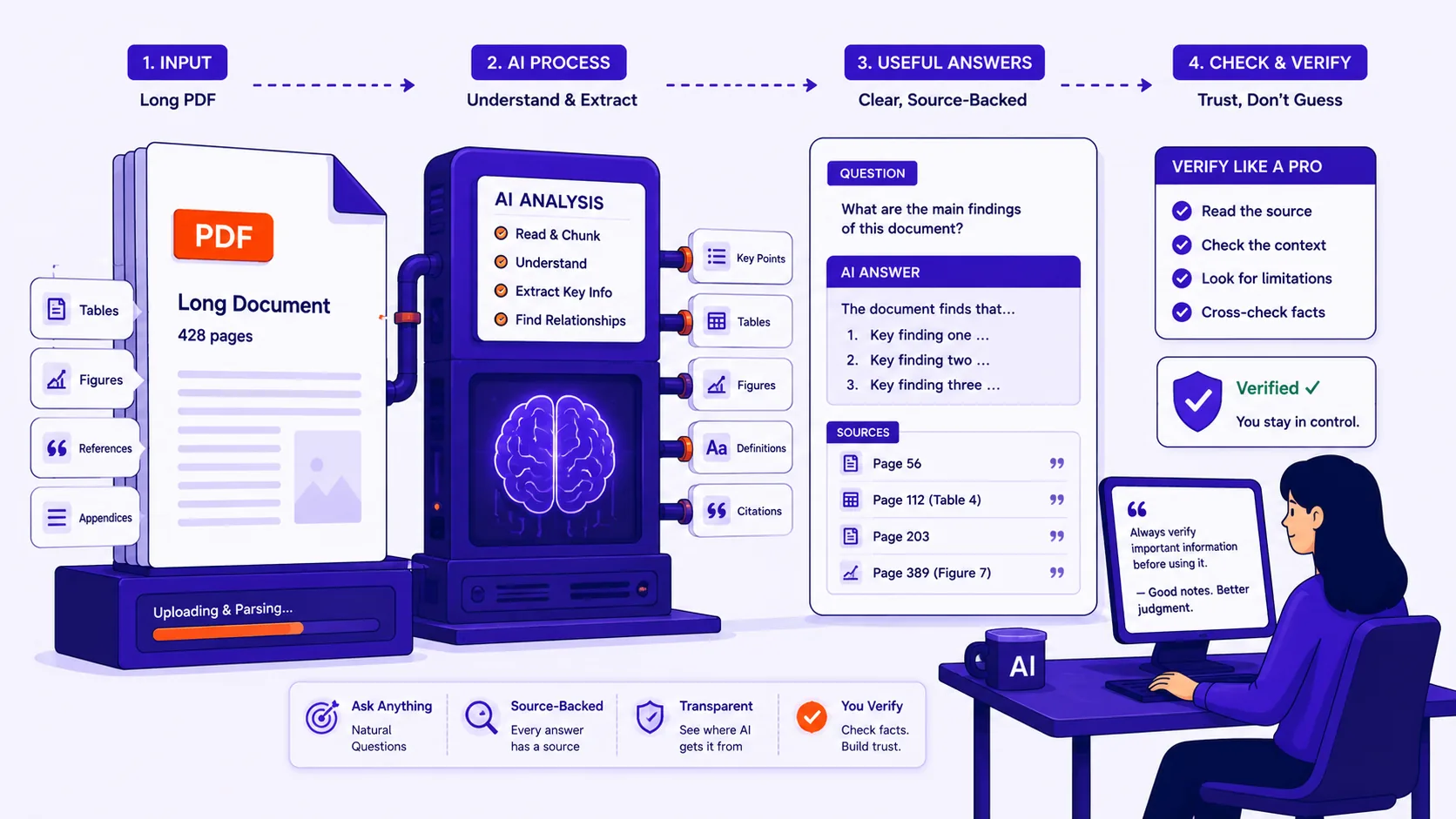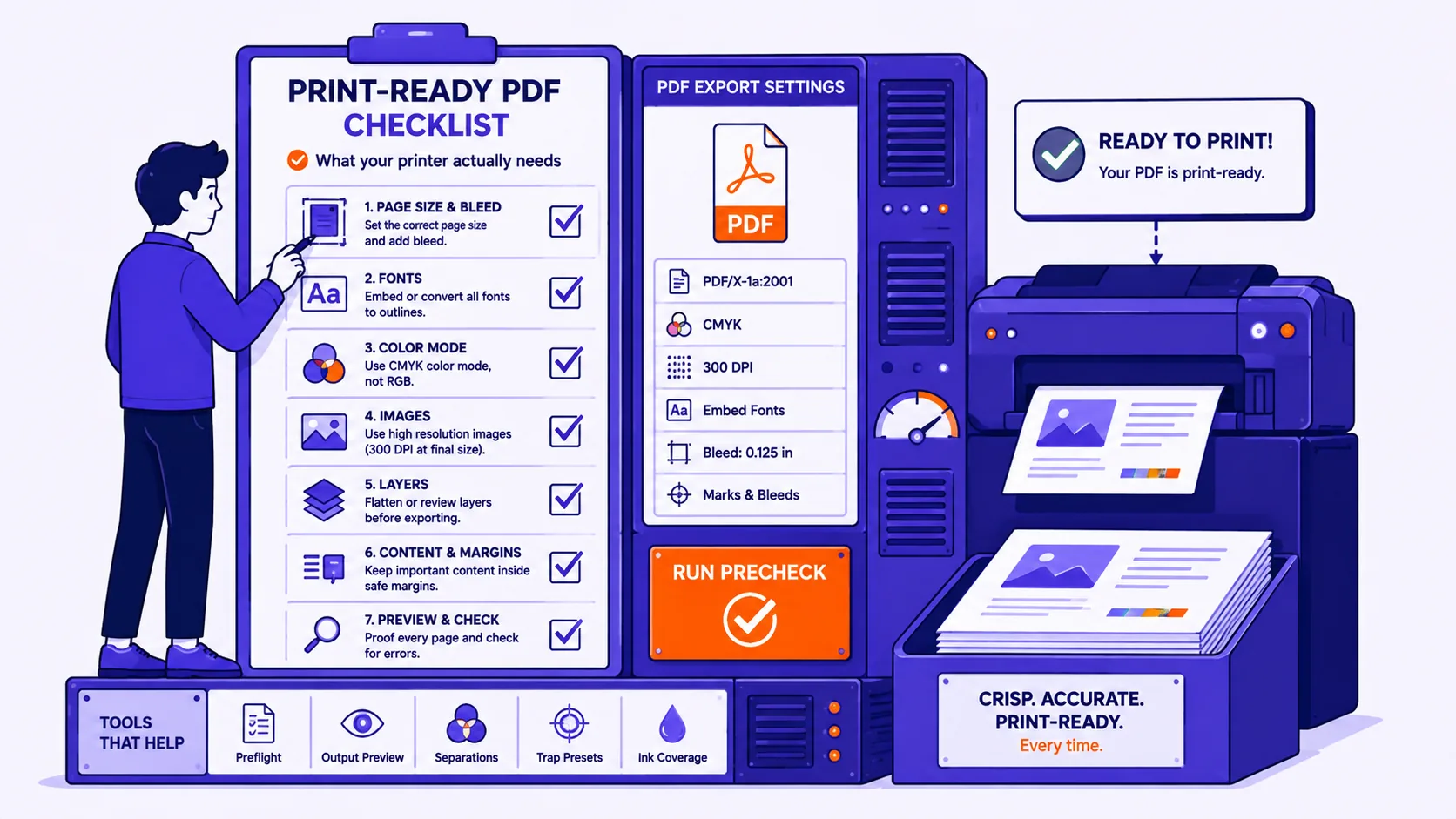
You copied three pages out of a PDF report into Word and got a wall of text with a line break after every line, hyphens stuck inside words, and two columns woven together into nonsense. The table you actually needed arrived as one column of values with no rows. None of this is a bug in the copy command, it follows directly from how the PDF format works, and each symptom has a specific fix.
A PDF has no paragraphs, columns or tables
A PDF page is a sequence of drawing instructions. In the PDF specification, text is placed by setting a text matrix and calling a text-showing operator such as Tj or TJ, which draws a string of character codes at a position on the page.
Here is a real content stream from a three-column table I generated with reportlab, then read back with pypdf:
BT 1 0 0 1 76 692 Tm (Region) Tj T* ET
BT 1 0 0 1 204 692 Tm (Units) Tj T* ET
BT 1 0 0 1 304 692 Tm (Revenue) Tj T* ET
BT 1 0 0 1 76 672 Tm (North) Tj T* ET
Read it as: put "Region" at x=76, y=692. Put "Units" at x=204, y=692. No row object, no cell, no column, no paragraph. There is not even a guarantee that the gap between two words is a space character, a gap can come purely from moving the drawing position, or from numeric adjustments inside a TJ array.
So every text extractor is doing reconstruction. It groups glyphs into words by horizontal gaps, groups words into lines by vertical position, and guesses at the rest. Different tools guess differently, which is why the same PDF gives you different text in Acrobat, in your browser, and in a converter.
PDF does have an optional layer that records real structure, tagged PDF, with Table, TR, TH and TD elements described in the PDF Association's structure elements guide. When present, extraction is far more reliable. Most PDFs do not have it; the file above had no structure tree at all, which is typical of anything from a print driver or report generator.
First: can you select the text?
Do this before anything else. Open the PDF, drag-select a sentence, and copy it.
- Text highlights and pastes as text. Born-digital PDF. Continue below.
- Nothing highlights, or a blue box covers the whole page. It is a scan, a photograph of a page. There are no glyphs, only pixels, and nothing can extract text until you run OCR on the PDF to generate a text layer.
- Some pages select and some do not. A mixed file, common when scans are merged into a digital report. Run OCR over the whole thing; it leaves existing text alone.
Do not attempt cleanup on a scan. You will spend an hour fixing errors OCR would have avoided.
The classic text symptoms
| Symptom | Cause | Fix |
|---|---|---|
| Wordsrunningtogether | Gaps drawn as position moves, not space characters | Try another extractor first |
| W o r d s s p l i t | Letter-spacing exceeded the word-gap threshold | Change tool, not text |
| "ecient", "ofice" | Ligature glyph with a wrong or missing ToUnicode map | Replace the broken sequences |
| "inter-\nnational" | Soft hyphen from line-breaking, extracted literally | Replace -^p with nothing |
| Break after every line | Each drawn line became a paragraph | Protect ^p^p, replace ^p, restore |
| Columns interleaved | Extractor read straight across the page | Extract one column at a time |
| Header/footer mid-text | Running heads are just text at a y-coordinate | Delete, or extract by page region |
Three of these deserve more detail.
Ligatures. Fonts draw "fi" and "fl" as a single joined glyph. Whether you get back "fi" or a broken character depends on the font's ToUnicode CMap, which the spec defines as a stream mapping character codes to Unicode values. Producers get this wrong routinely, Firefox's PDF printing shipped a bug where ligature code points rather than the component letters were written into the ToUnicode CMap, so extracted text contained U+FB01 instead of "fi". If your search for "efficient" finds nothing, that is why. Search for the fragment after the ligature instead ("cient").
Columns. I built two visually identical two-column PDFs, differing only in the order the text was drawn, and extracted both. With the columns drawn one after the other, pypdf 3.17.4 returned the left column then the right column, correctly. With the same page drawn row by row across the gutter, pypdf returned lines alternating between columns:
The quarterly figures were
Regional demand fell by
 revised after the audit
a wider margin than the
pdfplumber 0.11.9, which sorts by vertical position rather than drawing order, merged both columns into single lines in both files: "The quarterly figures were Regional demand fell by". Neither tool is broken. Neither can see a column, because there is no column in the file. The practical move is to crop or select one column at a time; most viewers support a rectangular text selection with Alt held down while dragging.
Bullets. A bullet is usually a glyph from a symbol font with no sensible Unicode mapping, so it arrives as a random letter. Find-and-replace that character in Word, then apply a real list style so Word owns the bullets.
Why tables are the hardest case
Everything above applies, plus one extra problem: in an untagged PDF there is usually no table object of any kind. There is text at coordinates, and sometimes drawn lines. Table extraction means inferring a grid.
I built two PDFs with identical text at identical coordinates, one with ruling lines drawn around the cells, one without, and ran pdfplumber's default table detection over each:
| File | Line objects on page | Tables found by default detection |
|---|---|---|
| Ruled | 9 | 1 table, all 4 rows and 3 columns correct |
| Unruled | 0 | 0 |
The unruled table is perfectly readable to a human; to the extractor it is indistinguishable from a paragraph. Switching pdfplumber to its text-alignment strategy recovered the same grid, with blank rows inserted between the real ones. That is the general shape of it: ruled tables extract well, unruled tables need a tool that clusters by whitespace alignment, and that output needs a pass to remove phantom rows.
Merged cells make it worse. A cell spanning two columns is one string starting at one x-coordinate; the extractor assigns it to one column and leaves the other empty, shifting everything after it. Any row whose column count differs from the header row is where a merge was.
Getting numbers into Excel intact
Extracted numbers arrive as text, and three things routinely stop Excel recognising them:
- Thousands separators. "1,204" may be read as text depending on your regional settings. Strip commas with Ctrl+H first.
- Currency symbols. "$18,430" is text. Remove the symbol, then apply a currency format to the column instead.
- Parentheses for negatives. "($2,110)" is accounting notation for -2110. Do not rely on Excel to interpret it, replace "(" with "-" and ")" with nothing, then check the sign on a few rows.
Then paste and split:
- Copy the extracted text. In Excel, use Home > Paste > Paste Special > Text so no formatting or line-break weirdness comes with it.
- Select the column, then Data > Text to Columns. Choose Delimited > Next and tick the delimiters matching your data, comma, tab, or space, per Microsoft's wizard documentation. Watch the Data preview pane; if it looks wrong, the delimiter is wrong.
- If columns were aligned by spaces rather than one delimiter, choose Fixed width and drag the break lines to match.
- Multiply a suspect column by 1 in a scratch cell.
#VALUE!means it is still text.
The Word cleanup sequence
Order matters. Run these in Advanced Find and Replace with Use wildcards off, since the Special menu offers different codes when wildcards are enabled. Turn on the ¶ button on the Home tab first so you can see what you are doing.
- Replace
-^pwith nothing, rejoins hyphenated line breaks. - Replace
^p^pwith@@@, protects real paragraph breaks. - Replace
^pwith a single space, kills the per-line breaks. - Replace
@@@with^p, real paragraphs come back. - Replace
^l(manual line break) with^pif the file used soft returns. - Replace two spaces with one, repeatedly, until zero replacements are made.
- Delete headers, footers and page numbers, now easy to spot as short orphan fragments.
If the source is a plain document rather than a layout-heavy one, converting the PDF straight to text before opening it in Word saves a step: you get the reconstruction without the formatting artefacts Word adds on paste, and the file is processed in your browser rather than uploaded, which matters for a contract or a medical record.
Checklist before you start editing
- Can you select the text? If not, OCR first.
- Single-column layout? If not, extract one column at a time.
- Are the tables ruled? If not, expect whitespace-based detection and phantom rows.
- Hyphen fix before the paragraph-mark fix, the order is not optional.
- Spot-check three numbers in Excel with a
*1test.