You have a 40-page contract to send to the other side, and pages 12 to 14 are internal notes that must come out. One paragraph on page 6 also names a client who has nothing to do with this deal, so you draw a black rectangle over it and send the file.
The first job took thirty seconds and worked. The second one did not work at all, and that is the subject of the second half of this article.
Removing pages: the straightforward part
Work on a copy. Not because tools are unreliable, but because page removal is not undoable once you have overwritten the original, and you will almost always discover later that page 13 contained the only copy of an exhibit list. Duplicate the file, rename it something like contract-external-v1.pdf, and edit that.
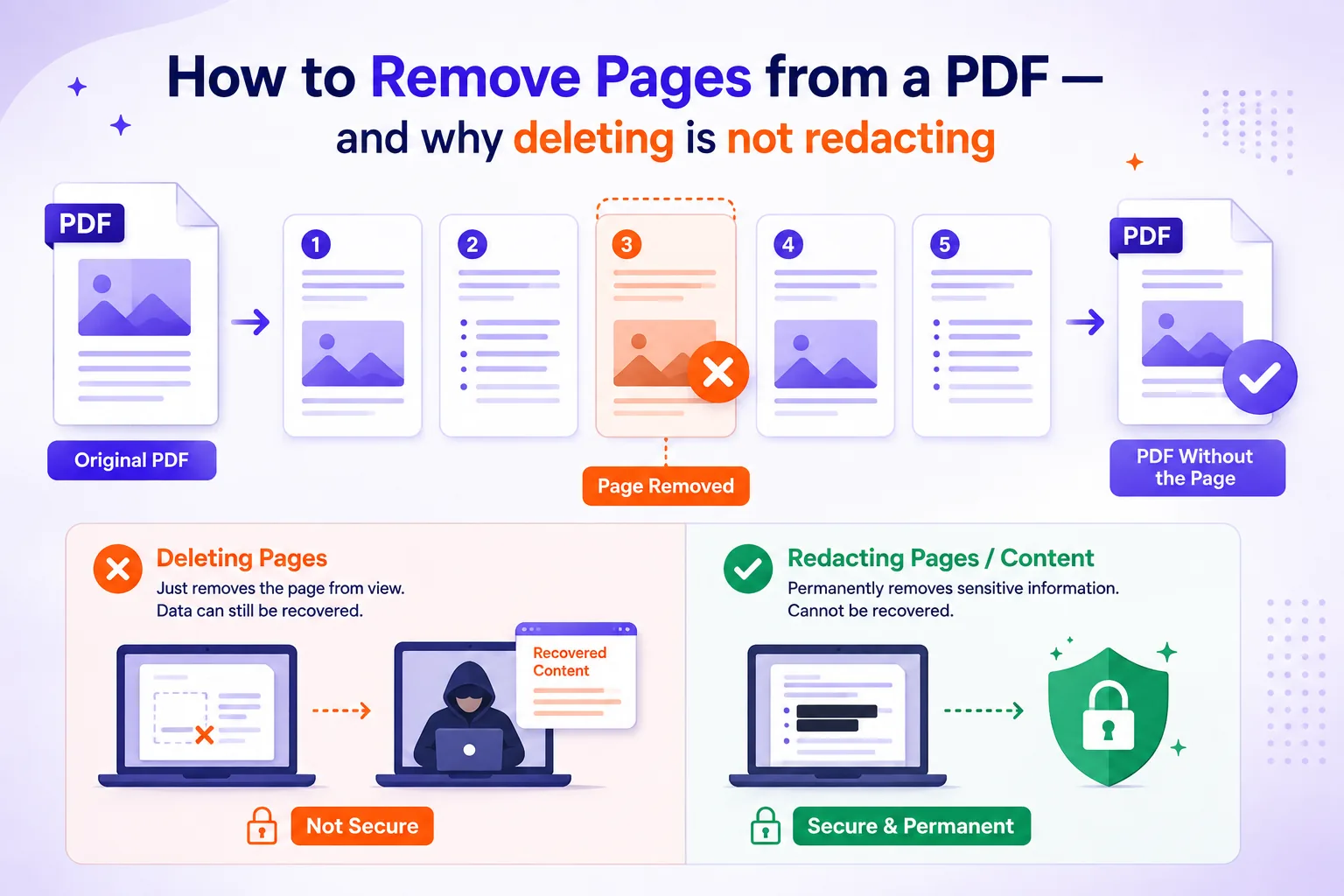
The mechanics are simple. Open the file, select the pages you do not want, delete them, save. A browser-based tool like Qikks Tools' page remover does this without the file leaving your machine, which matters when the document is a medical record, a settlement draft, or anything with an ID number in it.
What breaks when a page disappears
Two things point at pages by object reference rather than by number: bookmarks (the PDF outline) and internal links such as a cross-reference or a table-of-contents entry.
When the target page is deleted, those references do not renumber, they dangle. The qpdf manual is blunt about it: "bookmarks that point to pages that are in the output file will work, and remaining bookmarks will not work" (qpdf CLI documentation).
I built a four-page test PDF with one bookmark per page, deleted page 2 with qpdf in.pdf --pages . 1,3-4 -- out.pdf, and dumped the outline as JSON. The result:
| Bookmark | Target page before | Target page after |
|---|---|---|
| Section 1 | 1 | 1 |
| Section 2 | 2 | null (page gone) |
| Section 3 | 3 | 2 |
| Section 4 | 4 | 3 |
The surviving bookmarks followed their pages correctly. The orphaned one stayed in the outline as a visible, clickable entry that now goes nowhere. So after removing pages: open the bookmark panel, click every entry, and delete or repoint the dead ones. Do the same for any "see page 14" link in the body text, the number is now wrong even if the link still resolves.
A black box is not a redaction
Here is the part that gets documents unsealed. A black rectangle drawn over text in a PDF is a drawing operation or an annotation placed on top of the text layer. The text underneath is untouched. It is still in the content stream, still selectable, still searchable, and still returned by any text-extraction tool.
I tested this directly. I generated a PDF containing the line Claimant account number: ACCT-99887766, drew an opaque black rectangle over it, then ran pdftotext on the result. The extractor returned:
Page 2 of the settlement agreement
Claimant account number: ACCT-99887766
Agreed sum: 412,500 USD
Every character was intact. The same is true of a yellow highlighter mark, a white rectangle, and a text box with a white fill, they are all just marks stacked above the words.
Cropping fails differently but just as completely. Cropping a PDF sets a CropBox, which tells the viewer which rectangle of the page to display. The content outside it is still there, merely not shown. I set the CropBox on my test file to the top strip of the page, then extracted the text again: all three lines came back, including the two that no longer appeared on screen.
This is not hypothetical
In January 2019, lawyers for Paul Manafort filed a court document with blacked-out sections that anyone could read by selecting the black bars and pasting the text elsewhere (ABA Journal, 10 January 2019). The exposed passages included the allegation that Manafort had shared 2016 campaign polling data with a former Russian business associate, material the special counsel's office had redacted properly in its own filing.
The American Bar Association keeps a list of similar incidents: a 2006 Justice Department brief whose redacted excerpts were revealed by pasting into Microsoft Word, a 2011 order in Apple v. Samsung exposing licensing terms the same way, and a 2016 federal court order where the plaintiff's company name sat readable under the black boxes (ABA, "Embarrassing Redaction Failures"). The US Court of Federal Claims warns filers in plain terms that "anyone can copy the black box, paste it into a word-processing document, and the information under the black box appears" (PDF File Redaction Best Practices).
Checking whether a document you received is leaking
Three escalating tests, any of which takes under a minute:
- Select and paste. Drag-select across the black area, copy, paste into a plain text editor. If words appear, the redaction is cosmetic.
- Extract the whole file. Run
pdftotext file.pdf -or use any PDF-to-text converter, then search the output for names, numbers, or terms you expect to be gone. - Look at the raw objects. Text streams are usually compressed, so a plain
grepon the PDF finds nothing, that is not reassurance. Runqpdf --stream-data=uncompress file.pdf out.pdffirst, then grepout.pdf. In my test, grepping the original file returned zero matches while the uncompressed version returned the account number immediately.
How to redact properly
There are exactly two approaches that work.
True redaction uses a tool that marks a region, then deletes the underlying content objects, the text operators, the image data, and paints the box afterwards. Acrobat Pro's Redact tool works this way; the marking step and the "apply" step are separate, and nothing is removed until you apply.
Flatten and re-OCR is the blunt instrument, and it is reliable. Render each page to an image, drop the images back into a PDF, then OCR the result so the parts that should be readable are searchable again. I rasterised my black-boxed page at 150 dpi and rebuilt it as a PDF; text extraction returned zero characters. The trade-off is size and quality: that single rasterised page came out at 11,333 bytes against 2,865 bytes for the entire original four-page vector file.
| Method | Removes the text? | Notes |
|---|---|---|
| Black rectangle / highlighter / white box | No | Measured: full text still extractable |
| Crop | No | Sets a CropBox; content stays in the file |
| Delete the whole page | Yes | Leaves dangling bookmarks and links |
| True redaction tool | Yes | Removes content objects, then draws the box |
| Flatten to image + OCR | Yes | Measured: 0 characters extractable; larger file |
The metadata nobody deletes
Removing a page does nothing to document-level data. After deleting page 2 from my test file, the output still carried /Author: Jane Doe and /Title: Settlement Draft v7, including the draft number I had presumably not meant to advertise.
Check all of these before sending:
- Document properties: title, author, subject, keywords, and the XMP packet that duplicates them.
- Producer and creator strings, which name your software and version.
- Embedded page thumbnails, which can be pre-redaction renderings of the page.
- File attachments, including spreadsheets someone embedded three revisions ago.
- Embedded JavaScript and form actions.
- Incremental save history. PDFs can be updated by appending, leaving earlier versions of objects intact in the file. Saving a fresh linearised copy,
qpdf --linearize in.pdf out.pdf, or Acrobat's "Save As" rather than "Save", discards them.
Before you send it to a third party
- You are working on a copy, and the original is untouched somewhere else.
- The pages you meant to remove are gone, not just blank.
- Every bookmark and internal cross-reference has been clicked and either works or has been deleted.
- Redactions were applied with a real redaction tool or the page was flattened to an image.
- You extracted the text of the finished file and searched it for each term you thought you removed. Zero hits.
- Document properties are cleared, attachments and scripts are removed, and the file has been re-saved rather than incrementally updated.
- Page numbers printed in the body text still make sense after the deletions.
Test 5 is the one that catches everything else. Extract, search, and only then attach it to the email.