You dropped twelve scanned pages into a merge tool and the finished file runs 1, 10, 11, 12, 2, 3. Or you combined four chapter files into a 200-page report and the navigation pane that used to list every section is now empty. Neither is a bug you can report. Both are predictable consequences of how PDF stores pages and everything attached to them, and both are avoidable if you know where the damage happens.
The numbers below were measured in a sandbox with qpdf 11.9.0 and pypdf 3.17.4 on files generated for the purpose.
Page order: the sort you see is not the sort you get
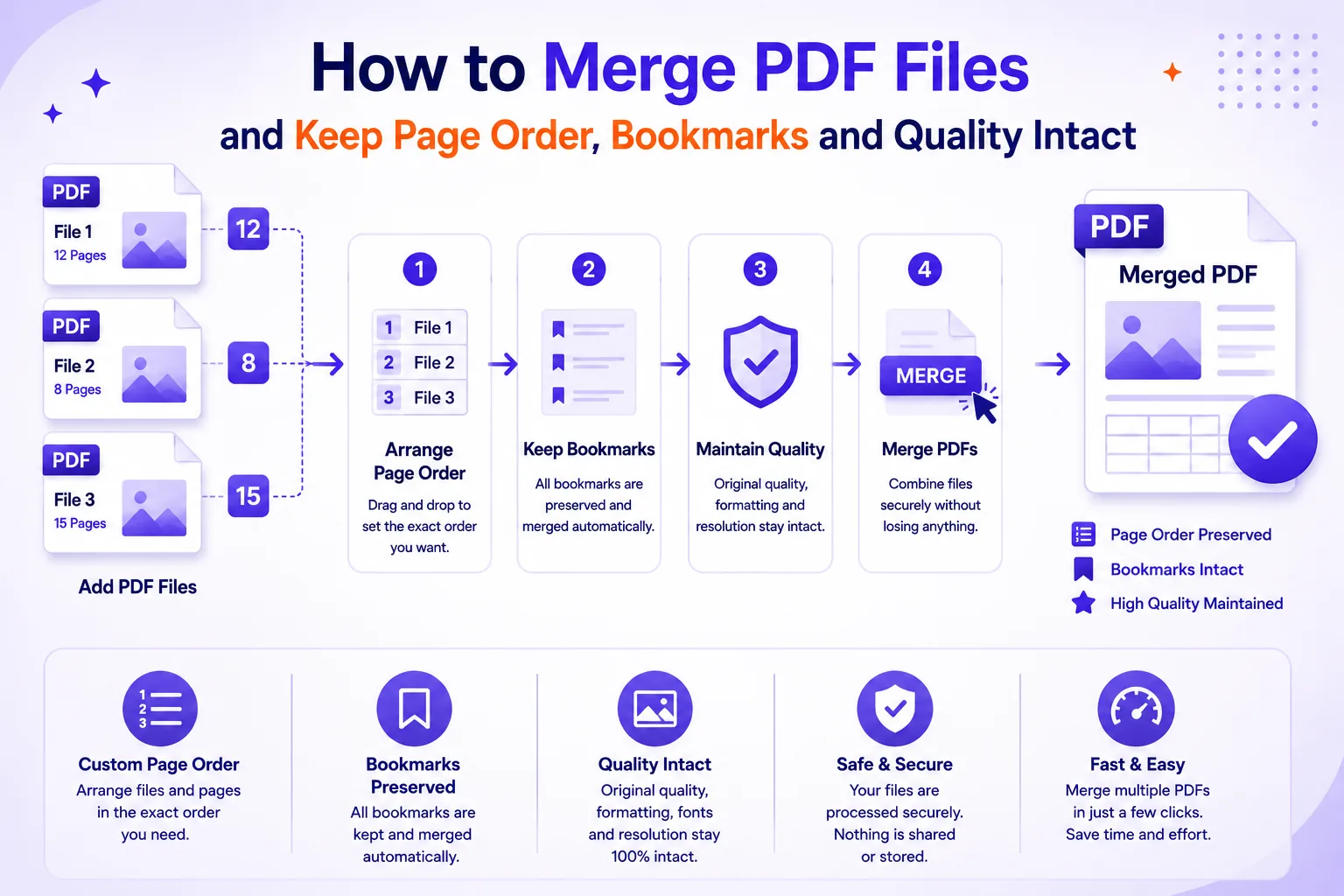
Drag-and-drop order is only as reliable as the order your file manager hands over. Most upload dialogs and command-line globs sort filenames as text, character by character, and in text 1 beats 2 before the second character is ever read.
Sorting scan1.pdf through scan12.pdf as strings gives this:
scan1, scan10, scan11, scan12, scan2, scan3, scan4, ...
Zero-pad to a fixed width and the same sort produces the right answer:
scan01, scan02, scan03, ..., scan10, scan11, scan12
Pad to the number of digits your largest batch will ever need, two up to 99 files, three up to 999. Use YYYY-MM-DD for dates in filenames, for the same reason: it is the only date format that sorts correctly as text.
Dragging files in by hand, drag them one at a time in reading order. A multi-select drop preserves whatever order the selection had, the folder's current sort, not the order you clicked.
Mixed page sizes and orientations
PDF sets page geometry per page, not per document, so a merged file can legitimately contain several sizes at once. Merging an A4 report, a landscape spreadsheet export and a US Letter contract produced exactly that:
| Pages | Size in points | Size in mm | Orientation |
|---|---|---|---|
| 1-3 | 595.3 x 841.9 | 210 x 297 | A4 portrait |
| 4-5 | 841.9 x 595.3 | 297 x 210 | A4 landscape |
| 6-7 | 612 x 792 | 216 x 279 | US Letter portrait |
On screen this is harmless. In print it is not. A driver fed one paper size scales the odd pages to fit, and A4 into Letter is roughly a 94% reduction with uneven margins, enough to shift a signature block or clip a footer sitting close to the trim.
Do not normalise by default. Scaling a landscape drawing into a portrait frame shrinks it, and scaling up resamples nothing, the pixels in a scan do not improve. Normalise only for a document that will be printed double-sided or bound, and then scale to the target paper rather than rotating content.
Rotation is the exception worth fixing before merging. A page whose /Rotate value is 90 or 270 displays sideways, and readers do not fix it for you. Correct those in the source file first with a rotate tool so the merge inherits pages that are already the right way up.
Bookmarks disappear more often than they survive
An outline entry points at a page object, not a page number. A merge has to rebuild the outline tree and repoint every entry, and not every tool does.
I merged ten files carrying three bookmarks each, 30 in total, three different ways:
| Method | Bookmarks in output |
|---|---|
qpdf --empty --pages a.pdf b.pdf ... -- out.pdf |
0 of 30 |
qpdf a.pdf --pages a.pdf b.pdf -- out.pdf |
3 of 30 (first file only) |
pypdf PdfWriter.append() |
30 of 30, nesting intact |
The qpdf results are documented behaviour, not a defect. qpdf's manual explains that document-level information such as outlines comes from the primary input file: --empty means there is no primary file to take it from, and a real primary file supplies only its own outline. pypdf's merging documentation describes importing the relevant named destinations along with the pages, which is why its output kept all 30 with the parent/child nesting intact.
So after any merge, open the output and look at the bookmarks panel. If the tree is empty or has collapsed into a flat list, the tool rebuilt the document without the outline, and no amount of re-saving brings it back. Merge again with a different tool.
Internal links break quietly at the edges
Cross-references have the same problem, with a twist. In a full merge, both qpdf and pypdf retargeted internal links correctly: a "jump to page 3" link in the first file still landed on page 3, and the same link in the second file landed on page 6 of the merged document.
Take a subset, though, and the link has nowhere to go. Selecting only page 1 of the first file left its link pointing at a destination that is no longer in the document, a link that looks live, clicks, and does nothing. qpdf's manual states this plainly: bookmarks and destinations pointing at pages you did not select will not work.
If your merge also drops pages, test the surviving links; a linked table of contents is the usual casualty.
Form fields with the same name become one field
PDF form fields are addressed by name. Merge two copies of the same form and you get two widgets sharing one name, which the reader treats as one field with one value.
Merging two copies of a timesheet with fields employee_name and week_total produced a document reporting two fields, not four. Filling employee_name on page 1 wrote the same value to page 2:
page 1: field employee_name value=A. Smith
page 2: field employee_name value=A. Smith
The fix is to namespace the fields before merging. pypdf's add_form_topname() wraps each source file's fields under a parent name; applying it produced copy1.employee_name and copy2.employee_name, two independent fields. With no equivalent in your tool, flatten each copy before merging so the fields become static page content, or keep the copies separate.
Any merge invalidates a digital signature
A PDF signature covers a byte range of the file. Merging rewrites the file, so that range no longer describes anything and the signature fails. The PDF Association is blunt about it: any change to the PDF document after a digital signature has been applied breaks that signature. PDF's incremental-update mechanism lets you append a revision without disturbing earlier ones, but a merge is not an incremental update, it is a new document.
No setting avoids this. Keep the signed original as the authoritative file, merge a copy for reading convenience, and say in the covering email which is which.
File size after merging is not the sum you expect
Merging ten files that each embedded the same 345 KB JPEG gave these results:
| File | Bytes | vs sum of inputs |
|---|---|---|
| Sum of 10 inputs | 4,354,321 | , |
| qpdf merge | 4,340,135 | -0.3% |
| qpdf with object streams | 4,328,356 | -0.6% |
| pypdf append | 4,347,561 | -0.2% |
All ten copies of the identical image survived. None of these tools deduplicate shared resources across source files, so expect roughly the sum of your inputs, minus the few kilobytes of per-file overhead, headers, cross-reference tables, metadata, that nine redundant files no longer need.
Output comes in under the sum when the inputs carried baggage the merge discards: old revisions from incremental saves, orphaned objects, uncompressed cross-reference tables. It comes in over when a tool re-encodes images or embeds a full font where a subset was there before. Too big for email is a compression problem, not a merge problem, see why is my PDF so large.
Scanned and digital halves do not mix evenly
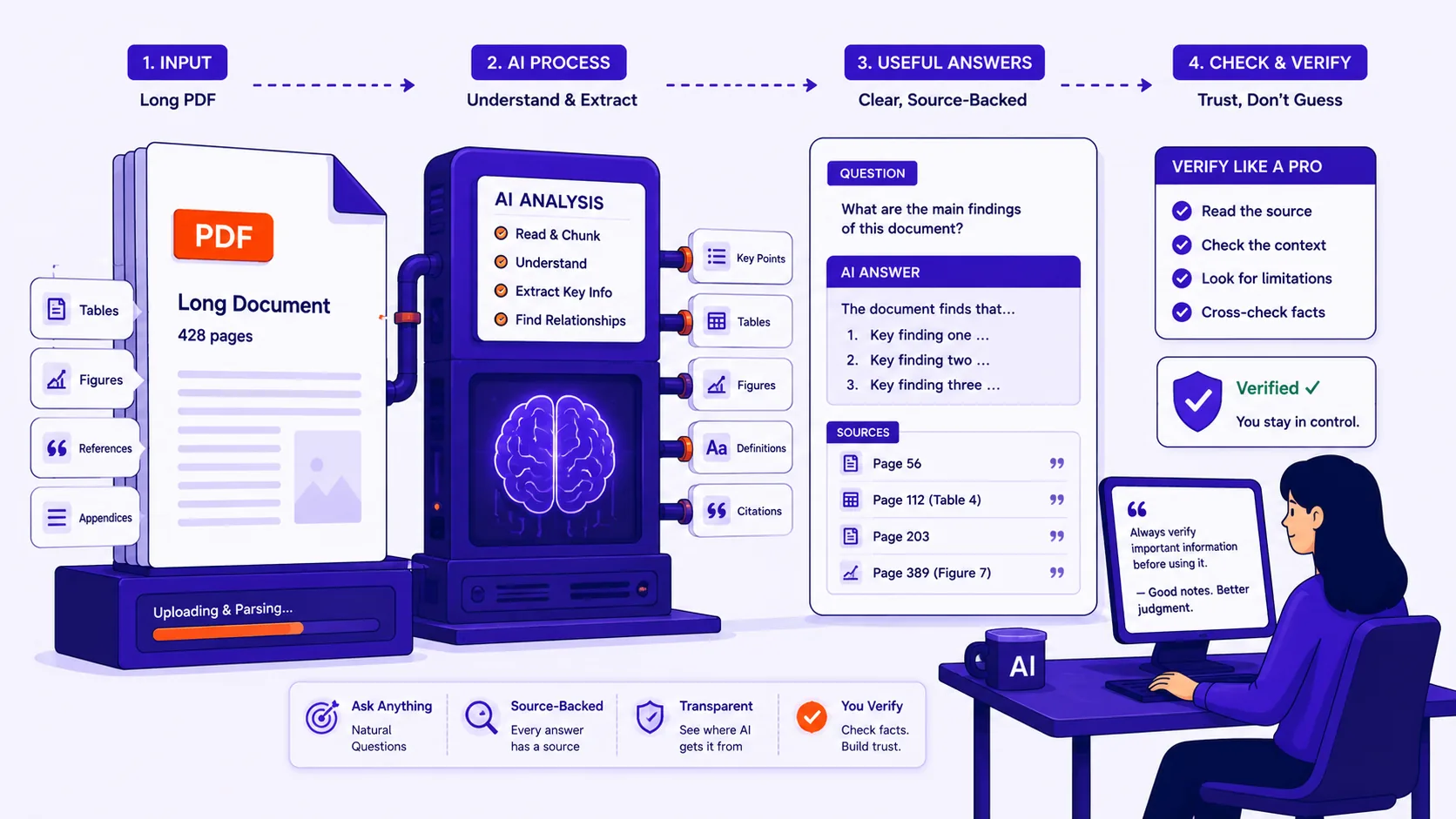
Merging a born-digital document with a scan produces a file where half the pages are searchable and half are pictures of words. Text extraction on the merged test file returned characters from pages 1-3 and zero characters from the scanned page 4.
Nothing about merging adds a text layer, and nothing warns you: recipients hit Ctrl+F, find nothing, and assume the clause is missing. Run the scanned pages through OCR before merging, not after.
The procedure
- Rename the inputs with zero-padded numbers so text sorting matches reading order.
- Fix rotation in the source files; correct sideways pages before they enter the merge.
- OCR any scanned inputs so the whole output is searchable.
- Flatten or namespace form fields if two inputs share a form.
- Note which inputs are signed and set them aside as separate deliverables.
- Record the total page count of the inputs.
- Merge, with Merge PDF or any tool you have verified keeps outlines. Merging happens in your browser there, which matters when the inputs are contracts or medical records that should not travel to a server.
- Verify the output before sending.
Pre-send checklist
- Page count matches the sum of the inputs.
- First and last page of every source section is where you expect it.
- Bookmarks panel shows the full tree, not an empty list.
- Table-of-contents links land on the right pages.
- Ctrl+F for a phrase from each source file returns a hit.
- Form fields, if any, hold independent values.
- Page sizes are what you intended, checked against the target paper if it will be printed.
- Signed originals are attached separately and named as such.