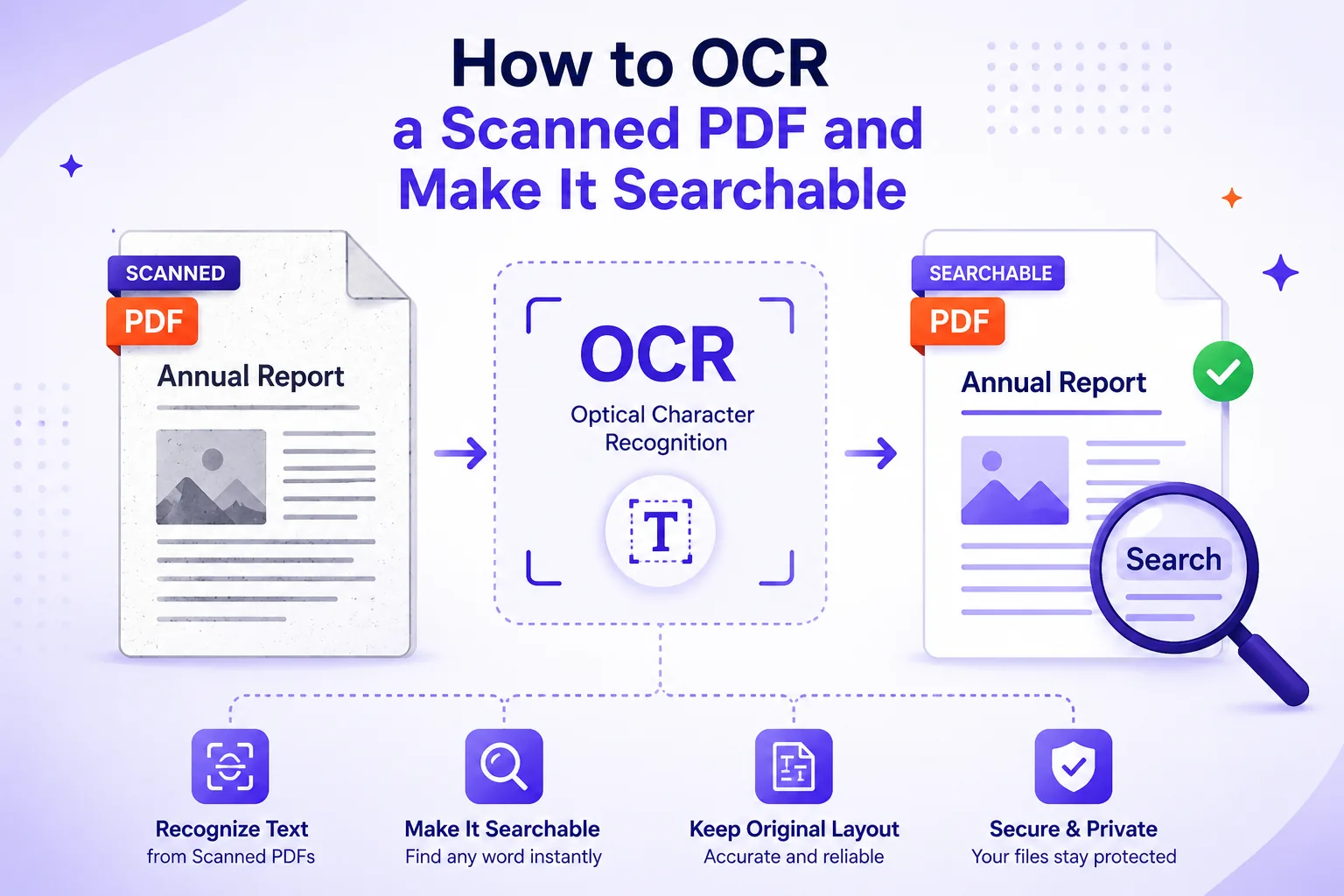
You have a 40-page scanned contract, you press Ctrl+F to find the indemnity clause, and you get no results. The pages are photographs of text, so search, copy and screen readers all have nothing to work with.
Optical character recognition fixes it, but results range from perfect to quietly useless depending on the scan. Here is what OCR actually does to the file, what wrecks it, and how to check that it worked.
What OCR actually puts in the file
OCR does not replace your scan. It reads the page image, works out what each character is and where it sits, and writes those characters back into the PDF as a text layer that is positioned but never painted.
The mechanism is one PDF operator. Text can be drawn in eight rendering modes, and mode 3, written 3 Tr in the content stream, means "neither fill nor stroke text. Text will still be selectable/searchable", per the PDF Association's operator reference.
I ran a test page through Tesseract 5.3.4 with pdf output and decompressed the result. The content stream reads, in order: the page image (/Im1 Do), then a text block opening with 3 Tr, then each recognised word with its own positioning matrix. The image is what you see; the invisible text under it is what search finds.
So the document still looks exactly like the scan, same paper texture, same coffee ring, same crooked stamp, but Ctrl+F works, you can select and copy, and a screen reader can read it.
The layer is cheap: for 599 characters of recognised text, my searchable PDF came to 185,660 bytes against 181,234 for the page image alone, about 4.4 KB, roughly 2 percent. OCR is not what makes scans enormous, which is a separate problem.
Searchable PDF or plain text?
Two different outputs, and you usually want a specific one.
| Searchable PDF | Plain text | |
|---|---|---|
| Keeps image, layout, signatures, stamps | Yes | No |
| Valid as a visual record | Yes | No |
| Archiving, legal, sharing, printing | Yes | No |
| Feeding a script or search index | Awkward | Yes |
| Size | Original plus ~2% | Tiny (my page: 601 bytes) |
Keep the searchable PDF as the record; export plain text when something downstream needs to parse the words.
What actually determines accuracy
I generated a nine-line test page of known text (9pt serif, with dates and money figures), degraded it in controlled ways, ran Tesseract 5.3.4 over each version and measured character error rate against the ground truth. These are synthetic pages, not real archives, so treat them as a guide to which defects matter rather than as universal constants.
Resolution: 300 dpi is the knee, and more buys nothing
Simulated scan: 1px blur, sensor noise, JPEG quality 35, light speckle.
| Scan resolution | Error rate |
|---|---|
| 75 dpi | 60.8% |
| 100 dpi | 34.1% |
| 150 dpi | 4.2% |
| 200 dpi | 2.8% |
| 300 dpi | 0.2% |
| 400 dpi | 0.7% |
| 600 dpi | 0.3% |
The collapse below 150 dpi is brutal, and everything from 300 dpi upward is indistinguishable noise. That matches Tesseract's advice that it "works best on images which have a DPI of at least 300 dpi" (Improving the quality of the output).
Going higher is not free: 600 dpi quadruples the pixel count and processing time, and on a degraded original amplifies paper grain into speckle. Scan text at 300 dpi; reserve 400 to 600 for genuinely tiny print. Upscaling afterwards does not recover detail the scanner never captured, rescan if you can.
Skew: the failure that looks like a missing page
The most alarming result, at default page segmentation:
| Tilt | Error rate | What came back |
|---|---|---|
| 0.5–2° | 0.0% | All nine lines |
| 3° | 79.6% | Only the last two lines |
| 5° and 10° | 100% | Empty file |
At 5 degrees Tesseract produced no text at all, not garbled text, no text. That is the failure you will not notice, because the PDF looks fine and search simply never matches.
The cause is layout analysis, not character recognition. Forcing --psm 6 ("assume a single uniform block of text") on the same 5-degree image dropped the error rate from 100% to 2.3%, so the letters were always readable; the software just could not find the lines. Tesseract's documentation puts it gently: "the quality of Tesseract's line segmentation reduces significantly if a page is too skewed."
Rotating that image back to level restored it to 0.2% error. Deskew first, it is the highest-value preprocessing step there is, and a page that looks crooked to you is already past the cliff.
Noise, speckle and faint originals
Random black specks degrade the output gradually, then all at once:
| Black specks | Error rate |
|---|---|
| 0.5% of pixels | 0.8% |
| 1% | 2.0% |
| 2% | 4.3% |
| 5% | 100% (no output) |
Faintness on its own turned out not to matter: dropping the ink to a pale grey, barely 50 levels of contrast against the paper, still gave 0.2% error, because binarisation adapts to the page histogram.
Faintness plus noise is what kills you. With sensor noise added, a page at 115 levels of contrast read perfectly; at 65 levels it returned nothing at all. A photocopy that has been through the machine six times is both faint and grainy, and that combination is the real enemy. Boost contrast and despeckle before OCR.
JPEG artefacts and unusual fonts
Both mattered less than expected. At 150 dpi, JPEG quality made no measurable difference down to quality 30, and even quality 10 reached only 0.5% error. Ringing around letter edges is real, but second-order next to resolution and skew.
Fonts were similar: serif, sans, monospace and italic all came in at or below 0.7% error. Decorative scripts and blackletter are another matter, falling outside what the shipped models were trained on, but ordinary document typefaces are fine.
Columns, tables and handwriting
Multi-column pages are a reading-order problem, not a recognition problem. On a two-column test page, the automatic modes (--psm 1, --psm 3) read the left column top-to-bottom then the right. --psm 4 and --psm 6 interleaved them: "Alpha one Beta one Alpha two Beta two". Every word correct, the document nonsense. Leave automatic segmentation on unless the page really is one block.
Tables come out as text in roughly the right order with no cell structure: you get the numbers, not the grid, so expect to rebuild the table by hand.
Handwriting is a genuinely different and much harder problem that ordinary OCR does not solve. Tesseract's FAQ is blunt: "You can, but it won't work very well, as Tesseract is designed for printed text. Look for projects focused on handwriting recognition." Handwritten text recognition uses separate models, often trained per-collection. Do not expect a general OCR pass to read your grandmother's letters.
Language selection
Running the wrong language model does not produce obvious garbage. It produces confident, plausible-looking nonsense, because the model forces the shapes on the page into the character set and vocabulary it knows. Umlauts become quote marks, Polish diacritics vanish, Cyrillic read as Latin becomes word salad.
Set the language before you run. For mixed documents Tesseract accepts several at once, "add -l LANG[+LANG] to the command line to use multiple languages together for recognition" (Command Line Usage), but stacking four or five costs speed and can hurt accuracy on each. Two is the sensible ceiling. If a document splits cleanly, such as an English contract with a French appendix, separate the pages and OCR each half.
When the file is a medical record, a contract or an ID document, note that Qikks Tools' OCR runs in the browser, so nothing is uploaded to a server.
Verify the output, do not trust it
OCR always returns something. It never says "I could not read this page." Spend two minutes on this.
- Search for a word you can see. Take a distinctive word from the middle of page 1 and another from the last page. If page 1 hits and the last page does not, a page failed silently.
- Select all the text and skim it for pages that produced nothing. An empty page inside a document full of text is the classic skew failure.
- Spot-check numbers against the image. OCR confuses 0/O, 1/l/I, 5/S, 8/B and 6/G, and flags none of them.
- Never trust an OCR'd figure in a financial or legal document without reading it off the image. A misread digit in an invoice total is a wrong number that looks entirely correct.
- Check reading order on multi-column pages by copying a paragraph out and confirming it reads as prose.
Quick checklist
- Scan or export pages at 300 dpi, grayscale for text
- Deskew and rotate upright before OCR, always
- Despeckle and boost contrast on faint photocopies
- Set the correct language; add a second only if the document is genuinely bilingual
- Keep the searchable PDF as the record; export plain text if a script needs it
- Search for a known word on the first and the last page
- Re-read every number that matters off the image